
Versioning
Overview
Assign versions to data, and select which data to output by specifying a version at conversion time.
Data whose version is less than or equal to the version specified to Standalone will be output.
How to Specify
Specify a version when running Wiener Standalone.
Wiener.exe -settings settings\develop_settings.yaml -version [version (uint)]
Example
Settings file
Specify the version field name in Excel in the settings file.
Example: Add master_version to develop_settings.yaml.
# Master version field name in Excel
version_excel_name: "master_version"
Excel
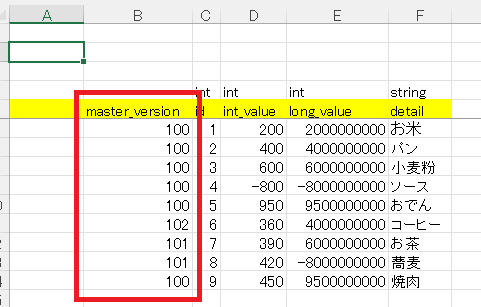
Add master_version to the Excel file(s) you want to version.
No entry is required for Excel files that do not need versioning.
Standalone
Run Wiener Standalone with version 101.
Wiener.exe -settings settings\develop_settings.yaml -version 101
Result
When you run against the above Excel with version 101
Only data with version 100 and 101 will be output; version 102 data will not be output.