
Converter
Overview
An EditorWindow for running the Wiener Static Game Data converter from within Unity Editor.
The Unity Asset version supports local Excel input and Google Sheets URLs in header.input_path.
Launch
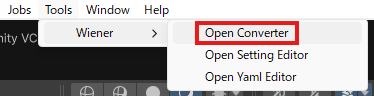
Open via Tools > Wiener > Open Converter in the menu bar.
Screen
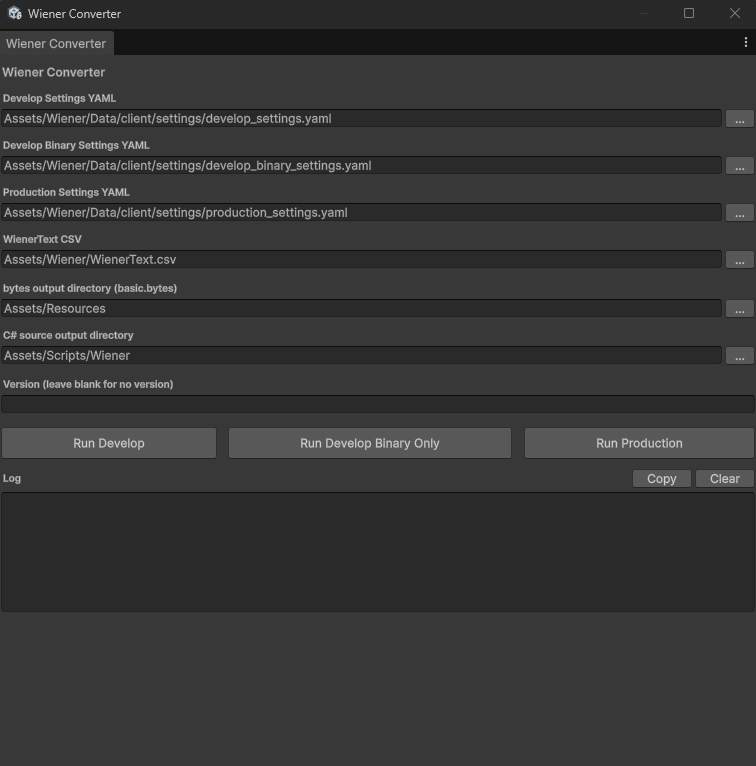
Settings
Develop Settings YAML
Path to the development settings file.
Assets/Wiener/Data/client/settings/develop_settings.yaml
Click the ... button to open a file dialog and select a YAML file.
Develop Binary Settings YAML
Path to the development binary-only settings file.
Assets/Wiener/Data/client/settings/develop_binary_settings.yaml
Production Settings YAML
Path to the production settings file.
Assets/Wiener/Data/client/settings/production_settings.yaml
WienerText CSV
Path to the Wiener text resource file.
Assets/Wiener/WienerText.csv
bytes output directory
Output directory for basic.bytes.
Assets/Resources
C# source output directory
Output directory for the generated C# source code.
Assets/Scripts/Wiener
Version
Enter a version string if needed. Leave blank for no version.
Run Buttons

| Button | Description |
|---|---|
| Run Develop | Runs conversion using the Develop Settings YAML. Press this when you have changed a YAML file or Excel data. |
| Run Develop Binary Only | Outputs binary only using the Develop Binary Settings YAML. Press this when you have added, changed, or deleted Excel data. This reduces import time. |
| Run Production | Runs conversion using the Production Settings YAML. The development setting is set to false, and production data is output. |
Conversion runs asynchronously. Buttons are disabled during execution and progress is shown in the log area.
Log Area

Displays the log output during and after conversion.
- Running:
Runningshown in yellow - Success:
Doneshown in green - Error:
ErrororExceptionshown in red
Click Clear to clear the log.
After Conversion
On success, the following steps are performed automatically:
basic.bytesis copied to the specified bytes output directory- C# source code is moved to the specified C# source output directory
AssetDatabase.Refresh()is called to update Unity assets
Settings File Reference
See Settings for how to configure the settings files.