
Try Localization
Preparation Before Starting the Sample
- Unity Startup is complete
- Create the Item Master is complete
- Create the Unit Master is complete
- Create the Reward Master is complete
- Create the Equipment Master is complete
Overview
This sample covers the following:
- Enable localization in SettingEditor
- Configure localized fields in YamlEditor
- Output translation data and enter Japanese translations
- Switch languages from C# code and confirm the localized result
For details about localization, see Localization.
You can still experience the localization flow by following this sample without reading that page first.
Steps:
- Enable localization in SettingEditor
- Configure localization targets in YamlEditor
- Convert
- Edit translation data
- Convert again
- Runtime check
SettingEditor Settings
Open SettingEditor
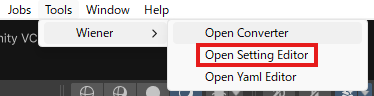
Open it from Tools > Wiener > Open Setting Editor in the menu bar.
Enable Localization
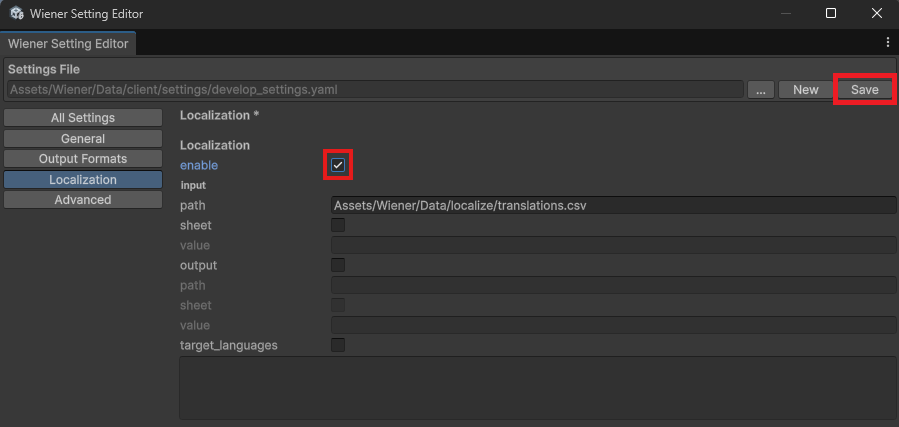
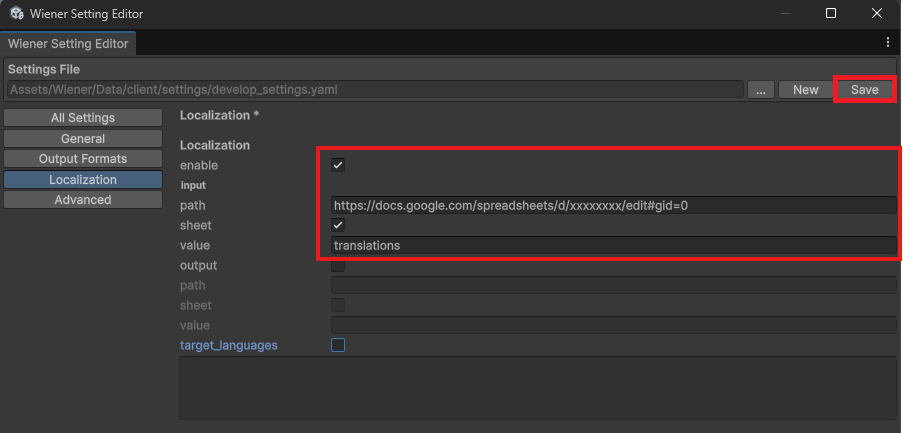
Set localization.enable to true.
Press the Save button.
Set localization.enable to true.
Set input.path to the spreadsheet URL.
Set input.sheet to the spreadsheet sheet name.
Press the Save button.
Note
When you formally enable localization, update all settings files: develop_settings.yaml, develop_binary_settings.yaml, and production_settings.yaml.
YAML Settings
Edit YAML files with YamlEditor.
Open YamlEditor
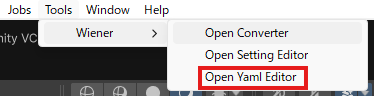
Select Tools > Wiener > Open Yaml Editor to open YamlEditor.
Edit item.yaml
Open item.yaml.
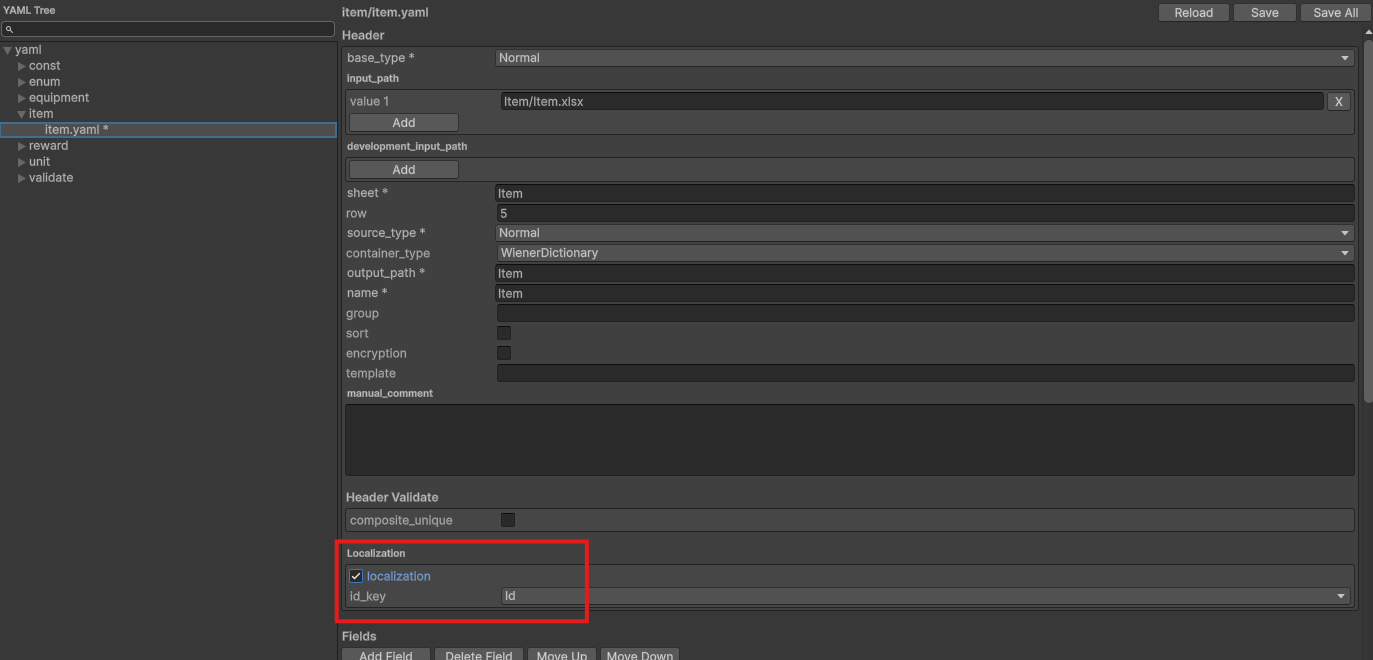
Check localization in the header and set id_key to Id.
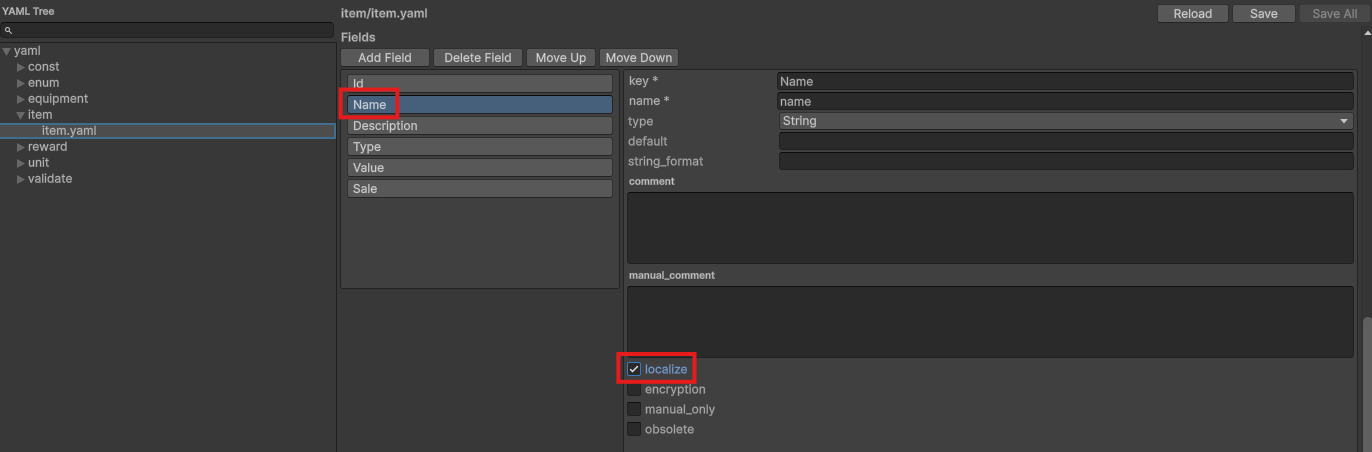
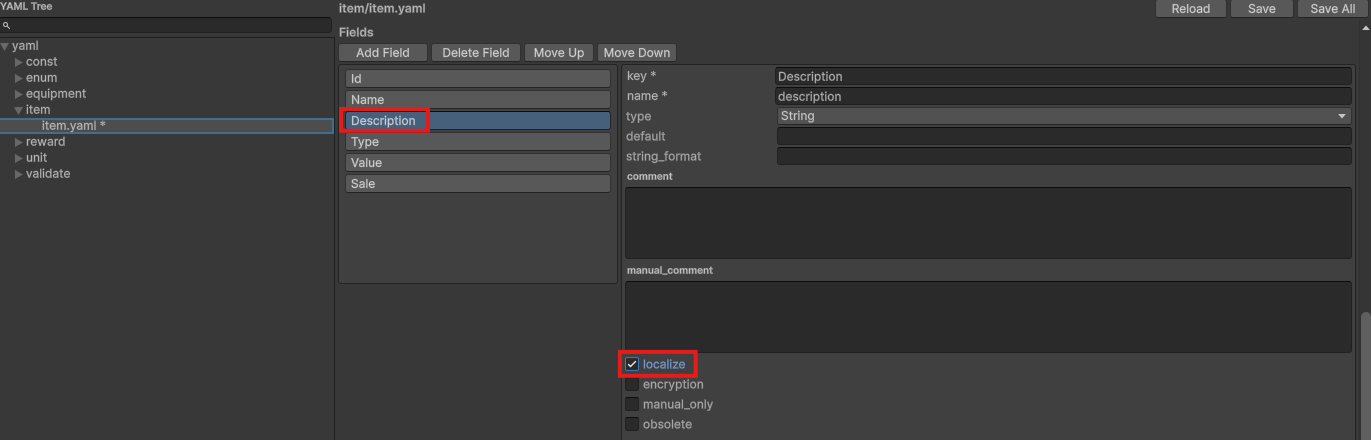
Check localize for Name and Description in fields.
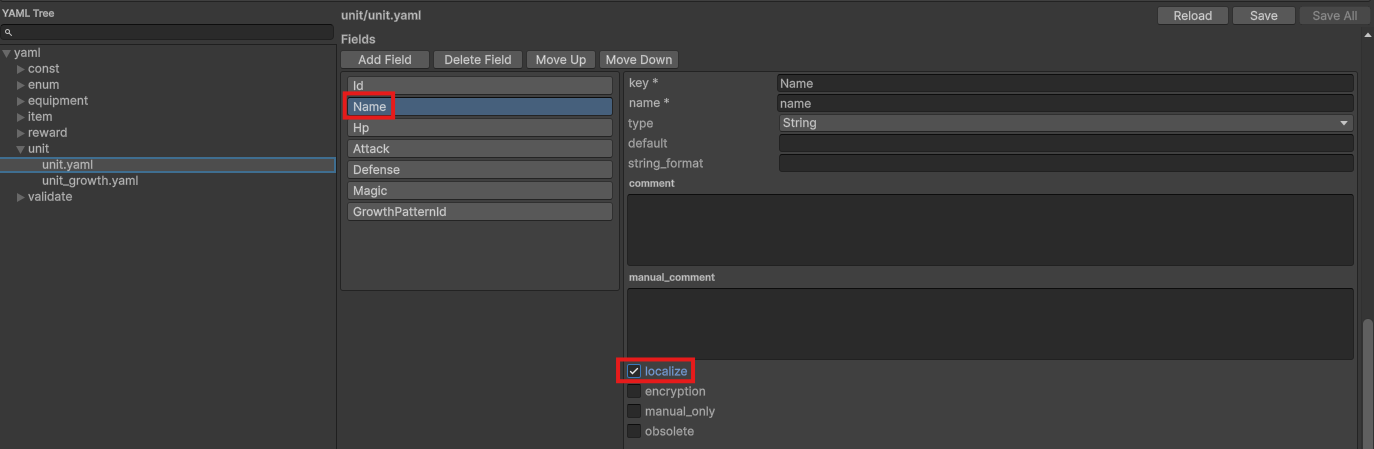
Edit unit.yaml
Open unit.yaml.
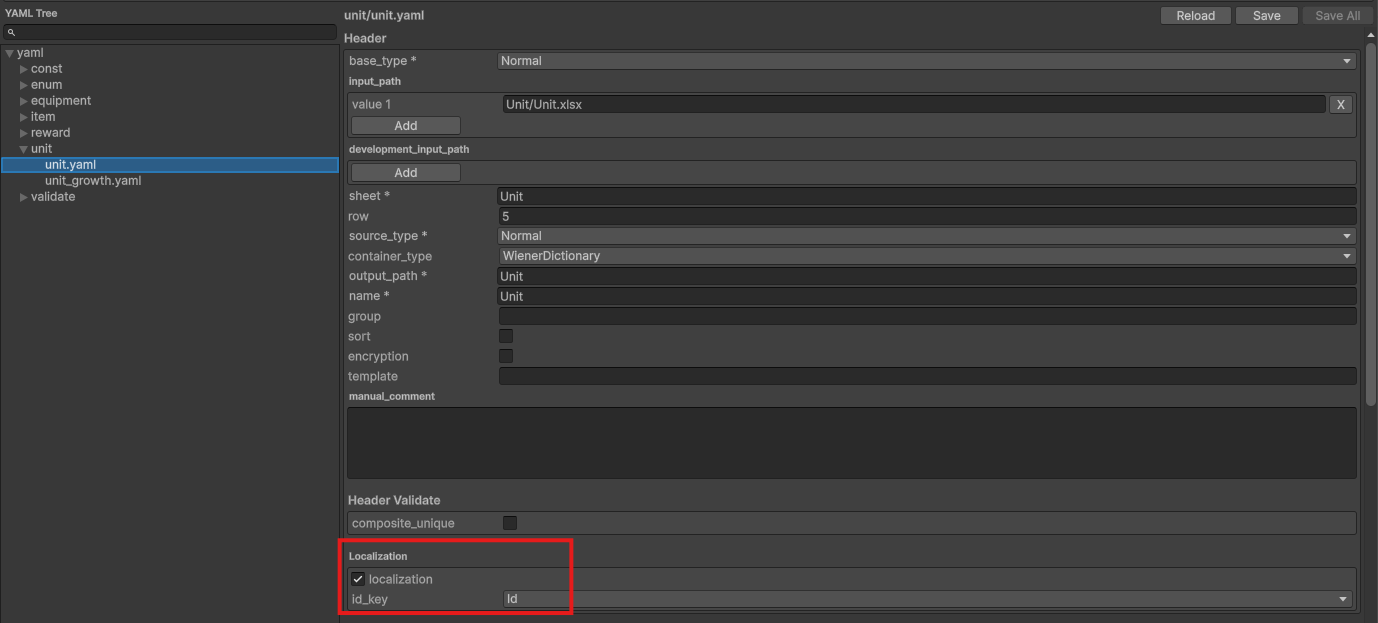
Check localization in the header and set id_key to Id.
Check localize for Name in fields.
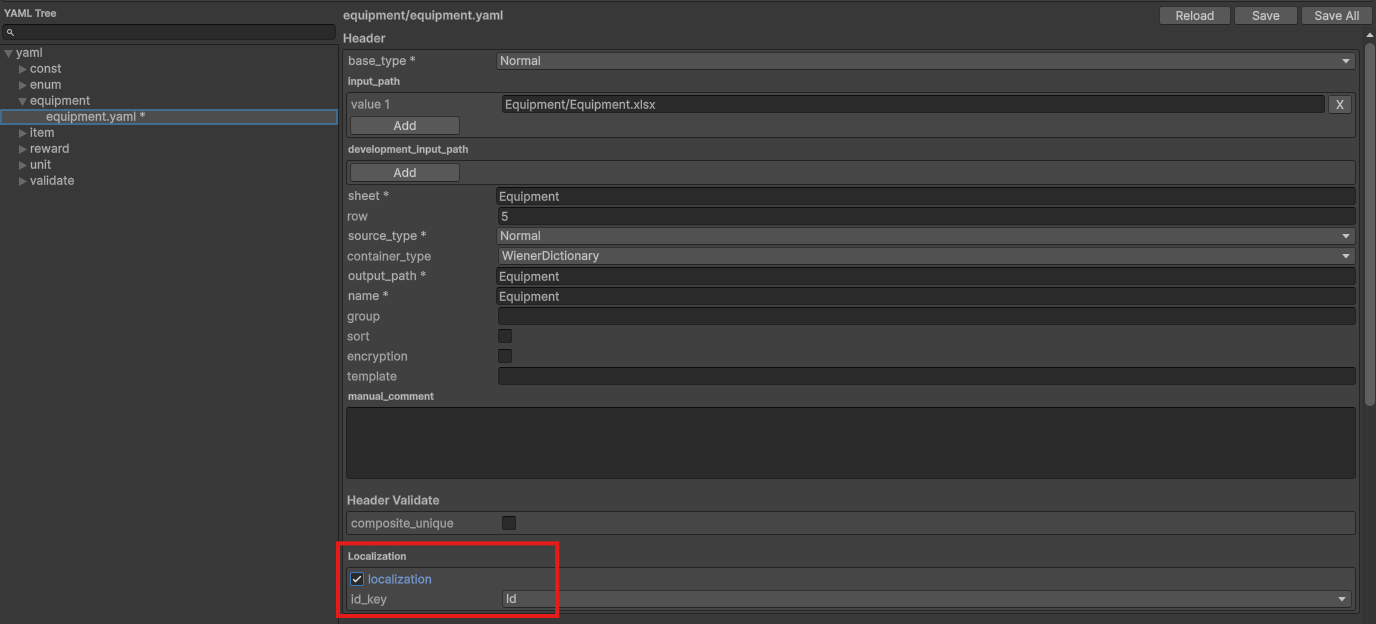
Edit equipment.yaml
Open equipment.yaml.
Check localization in the header and set id_key to Id.
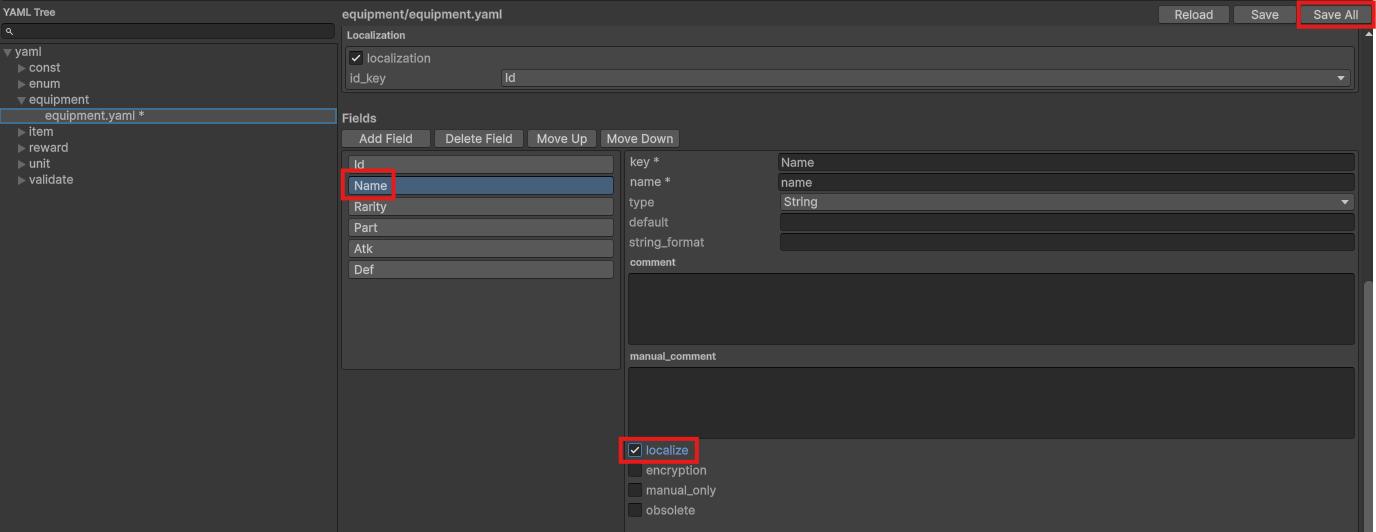
Check localize for Name in fields, then press Save All.
Convert
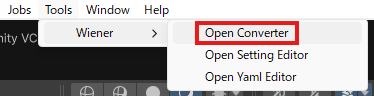
Open Converter
Select Tools > Wiener > Open Converter to open Converter.
Run Conversion
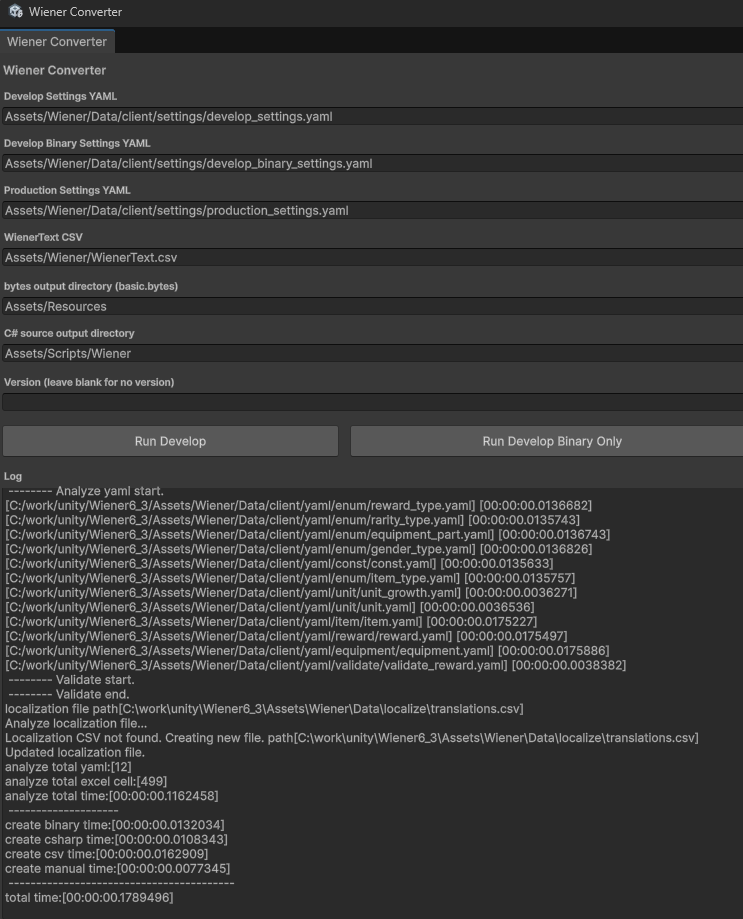
Press Run Develop to run conversion and confirm that no errors occur.
If a Google Sheets API permission error appears
When running Run Develop, credentials that have not yet enabled Google Sheets API access may show a 403 error like this.
Google Sheets HTTP request failed.
Status: 403 Forbidden
Google Sheets API has not been used in project xxxxxxxxxxxx before or it is disabled.
Enable it by visiting https://console.developers.google.com/apis/api/sheets.googleapis.com/overview?project=xxxxxxxxxxxx then retry.
In this case, open the URL shown in the error message, enable Google Sheets API, and authorize the required write access. It can take a few minutes for the change to propagate, so wait briefly and then run Run Develop again.
Check Translation Data
When conversion finishes, translation data is written to the location specified in the settings file.
In this sample, continue with the assumption that it was output to Assets/Wiener/Data/localize/translations.csv.
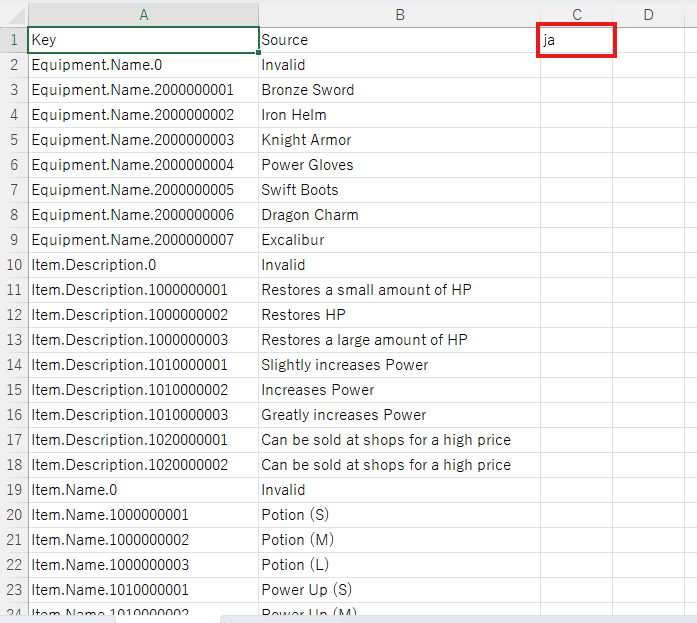
Add a Language Column
Add Japanese ja at the beginning of column C.
Enter Translation Data
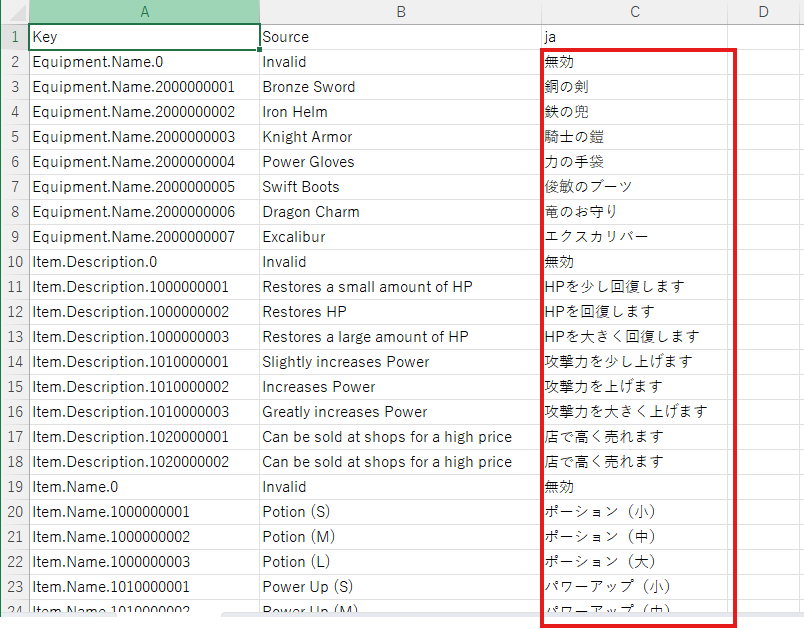
Enter translation data in the ja column. If you want to paste the sample data, use the Translation TSV Data at the end.
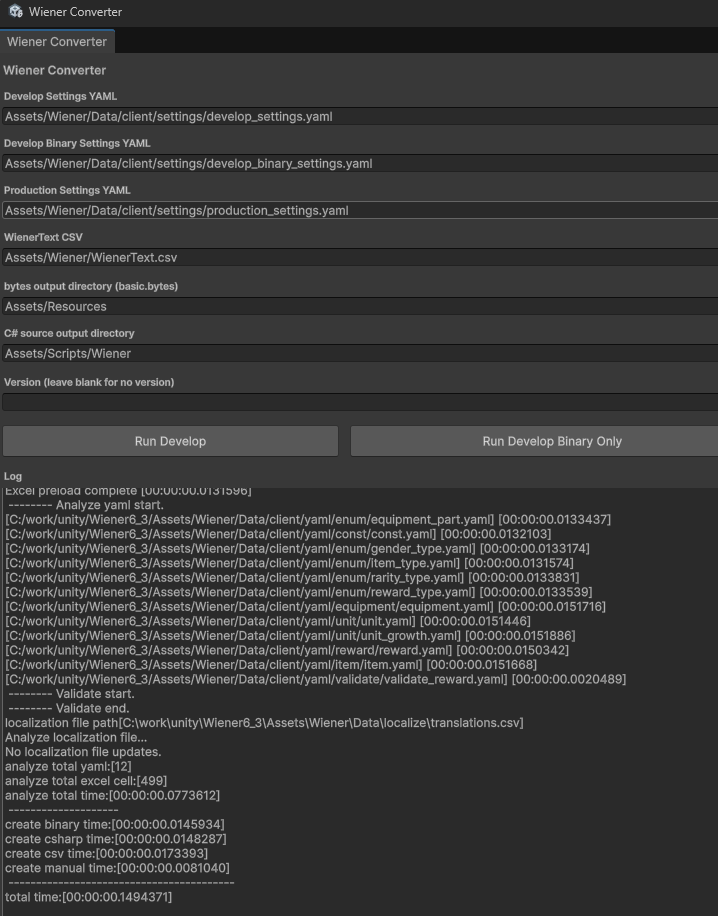
Convert Again
Press Run Develop again and confirm that no errors occur.
Runtime Check
Create the following Sample.cs script, attach it to the scene, and confirm that the strings change when the language is switched.
Sample.cs
using System.Linq;
using UnityEngine;
using Wiener;
using WienerLib;

public class Sample : MonoBehaviour
{
    void Start()
    {
        var wm = new WienerManager();
        var textAsset = Resources.Load("basic") as TextAsset;
        var result = wm.LoadBasicPack(textAsset.bytes);
        if (result != Result.Success)
        {
            Debug.LogError($"Failed to load basic pack: {result}");
            return;
        }

        Debug.Log("---- first language");
        OutputLanguage(wm);

        Debug.Log("---- Changing language to 'ja'...");
        wm.SetLanguage("ja");
        OutputLanguage(wm);

        Debug.Log("---- reset language");
        wm.ResetLanguage();
        OutputLanguage(wm);
    }

    void OutputLanguage(WienerManager wm)
    {
        foreach (var item in wm.Item.Values.Skip(1).Take(2))
        {
            Debug.Log($"Item: Name: {item.Name}, Description: {item.Description}");
        }
        foreach (var unit in wm.Unit.Values.Take(2))
        {
            Debug.Log($"Unit: Name: {unit.Name}");
        }
        foreach (var equipment in wm.Equipment.Values.Skip(1).Take(2))
        {
            Debug.Log($"Equipment: Name: {equipment.Name}");
        }
    }
}
Result
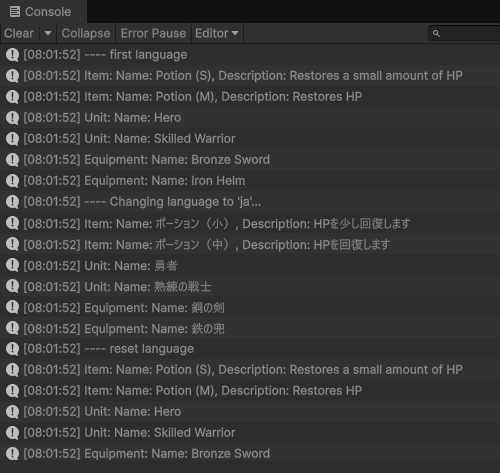
Translation TSV Data
When entering translation data, you can copy and use the following TSV.
Key	Source	ja
Equipment.Name.0	Invalid	無効
Equipment.Name.2000000001	Bronze Sword	銅の剣
Equipment.Name.2000000002	Iron Helm	鉄の兜
Equipment.Name.2000000003	Knight Armor	騎士の鎧
Equipment.Name.2000000004	Power Gloves	力の手袋
Equipment.Name.2000000005	Swift Boots	俊敏のブーツ
Equipment.Name.2000000006	Dragon Charm	竜のお守り
Equipment.Name.2000000007	Excalibur	エクスカリバー
Item.Description.0	Invalid	無効
Item.Description.1000000001	Restores a small amount of HP	HPを少し回復します
Item.Description.1000000002	Restores HP	HPを回復します
Item.Description.1000000003	Restores a large amount of HP	HPを大きく回復します
Item.Description.1010000001	Slightly increases Power	攻撃力を少し上げます
Item.Description.1010000002	Increases Power	攻撃力を上げます
Item.Description.1010000003	Greatly increases Power	攻撃力を大きく上げます
Item.Description.1020000001	Can be sold at shops for a high price	店で高く売れます
Item.Description.1020000002	Can be sold at shops for a high price	店で高く売れます
Item.Name.0	Invalid	無効
Item.Name.1000000001	Potion (S)	ポーション(小)
Item.Name.1000000002	Potion (M)	ポーション(中)
Item.Name.1000000003	Potion (L)	ポーション(大)
Item.Name.1010000001	Power Up (S)	パワーアップ(小)
Item.Name.1010000002	Power Up (M)	パワーアップ(中)
Item.Name.1010000003	Power Up (L)	パワーアップ(大)
Item.Name.1020000001	Koban	小判
Item.Name.1020000002	Oban	大判
Unit.Name.1000000001	Hero	勇者
Unit.Name.1000000002	Skilled Warrior	熟練の戦士
Unit.Name.1000000003	Heroine	ヒロイン
Unit.Name.1000000004	Villager A	村人A
Unit.Name.1000000005	Soldier King	兵士王