Create the Reward Master
Preparation Before Starting the Sample
- Unity Startup is complete
- Create the Item Master is complete
- Create the Unit Master is complete
Overview
This sample takes about 30 minutes.
This sample covers the following:
- Set a reward type and ID, then validate the ID against the master that matches the type
- Create DictionaryList-format reward Static Game Data
Reward Master Format
- group_id(int) Group ID
- reward_id(int) Reward ID
- reward_type(enum:reward_type) Reward type
- reward_count(int) Reward count
Reward Enum
- Item
- Unit
Reward Validation
- If the type is Item, check the ID in item.yaml
- If the type is Unit, check the ID in unit.yaml
Steps:
- Create the Excel enum file
- Create the Excel data file
- Create YAML
- Convert
- Runtime check
- Check an ID mismatch error
Create the Excel Enum File
Prepare the following Excel file by referring to Create the Excel enum file.
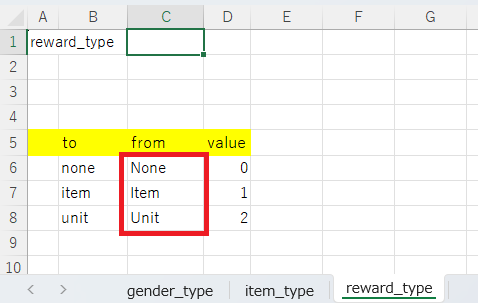
reward_type
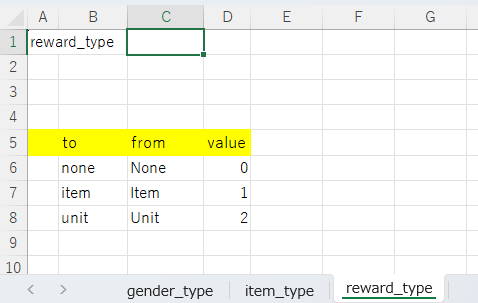
to	from	value
none	None	0
item	Item	1
unit	Unit	2
Create the Excel Data File
Assets/Wiener/Data/excel/Reward/Reward.xlsx
Assets
+-- Wiener
    +-- Data
        +-- client
        +-- excel
            +-- Const
            +-- Item
            +-- Reward
            |   +-- Reward.xlsx
            +-- Unit
            +-- EnumBase.xlsx
Reward.xlsx
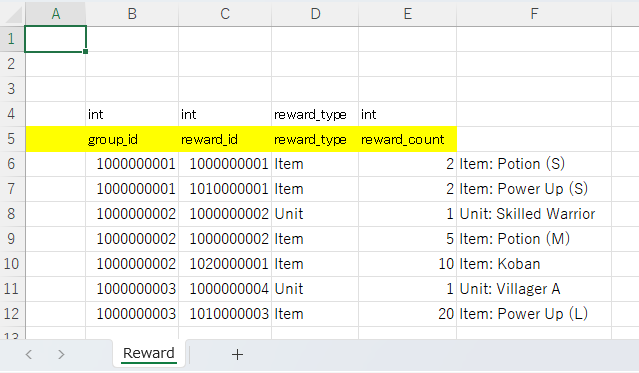
int	int	reward_type	int
group_id	reward_id	reward_type	reward_count
1000000001	1000000001	Item	2	Item: Potion (S)
1000000001	1010000001	Item	2	Item: Power Up (S)
1000000002	1000000002	Unit	1	Unit: Skilled Warrior
1000000002	1000000002	Item	5	Item: Potion (M)
1000000002	1020000001	Item	10	Item: Koban
1000000003	1000000004	Unit	1	Unit: Villager A
1000000003	1010000003	Item	20	Item: Power Up (L)
The comments in column F are memos for checking input. They have no type or column name in the header rows, so they are not imported as data.
Create YAML
Create YAML files with YamlEditor.
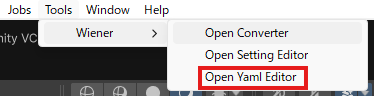
Open YamlEditor
Select Tools > Wiener > Open Yaml Editor to open YamlEditor.
Create reward_type.yaml
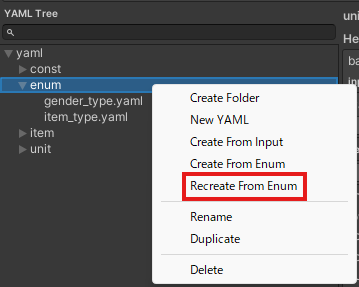
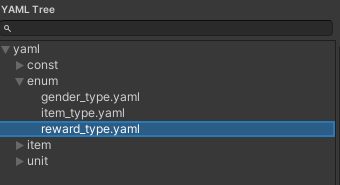
Right-click the enum folder in the left tree and select Recreate From Enum.Recreate From Enum runs with the settings used by the previous Create From Enum operation.
Create validate_reward.yaml
This YAML is used for ID checks.
Reward settings are made from RewardType and Id, so specify which YAML to check for each type.
- If Type is Item, check Id in item.yaml
- If Type is Unit, check Id in unit.yaml
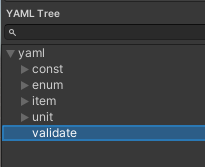
Create the validate Folder
Right-click the yaml folder in the left tree and select Create Folder, then create the validate folder.
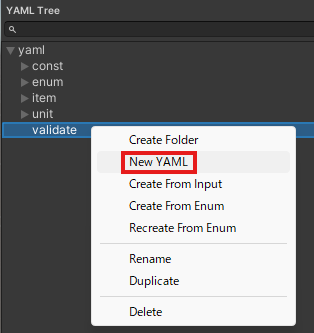
Create validate_reward.yaml
Right-click the validate folder in the left tree and select New YAML, then create validate_reward.yaml.
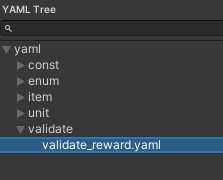
Edit validate_reward.yaml
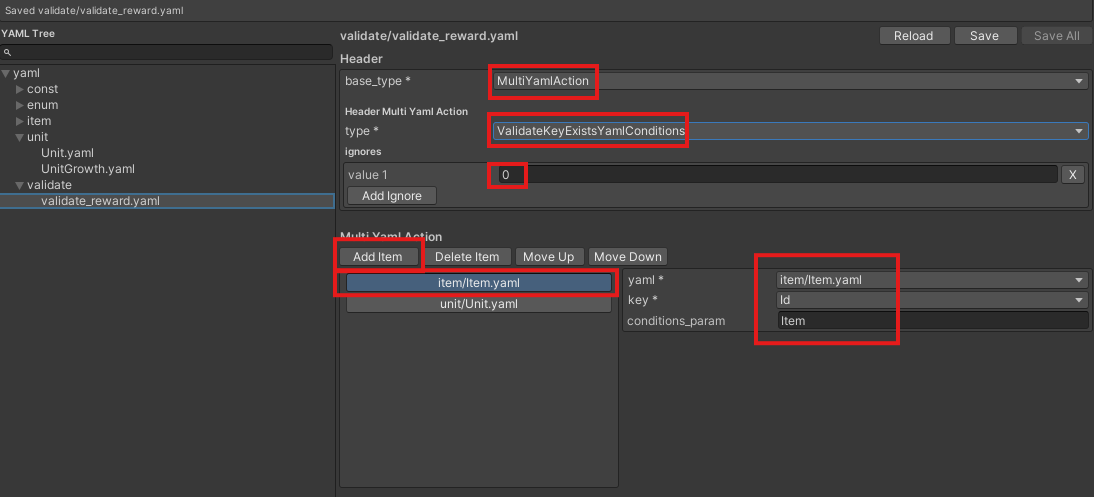
Set the header as follows.
- base_type: MultiYamlAction
- type: ValidateKeyExistsYamlConditions
- ignores.value: 0
Set the following items in multi_yaml_action.
- First item
- yaml: item/item.yaml
- key: id
- conditions_param: Item
- Second item
- yaml: unit/unit.yaml
- key: id
- conditions_param: Unit
- Press the Save button
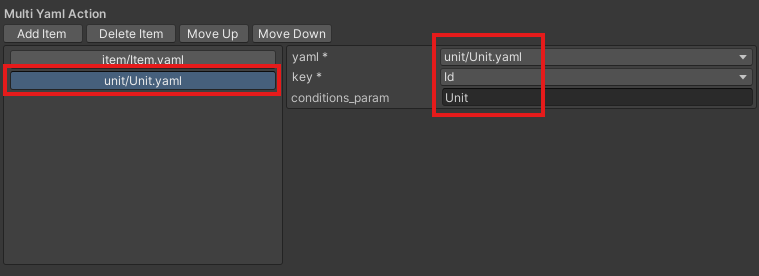
For conditions_param, enter the from value of reward_type in EnumBase.xlsx.
Create the reward Folder
Right-click the yaml folder in the left tree and select Create Folder, then create the reward folder.
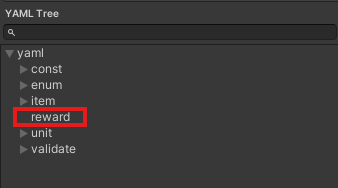
Create reward.yaml
Right-click the reward folder in the left tree and select Create From Input, then load Reward.xlsx and create reward.yaml.
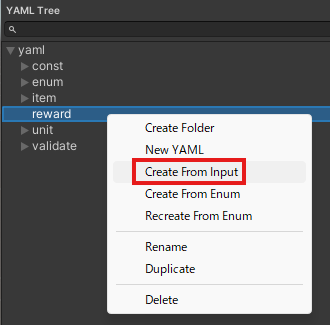
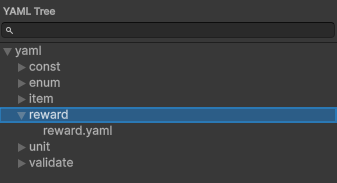
Edit reward.yaml
Edit header
Change header.container_type to WienerDictionaryList.
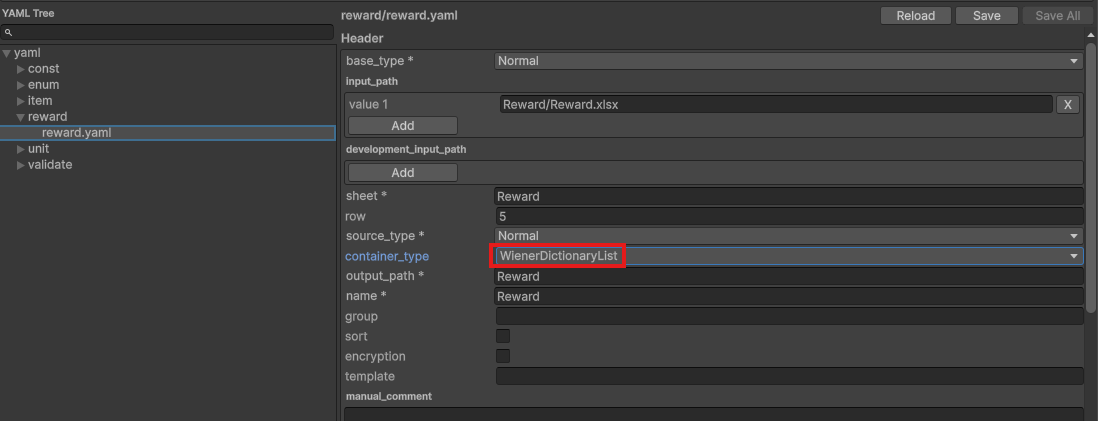
Edit fields
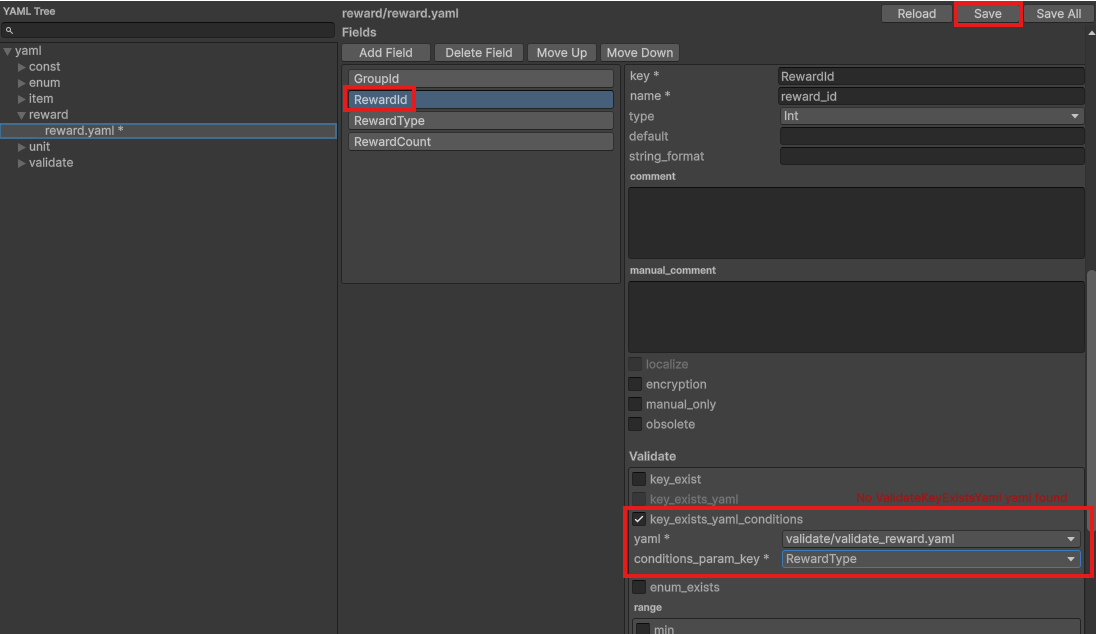
Set fields.validate.key_exists_yaml_conditions for RewardId.
- yaml: validate/validate_reward.yaml
- conditions_param_key: RewardType
Press the Save button.
Convert
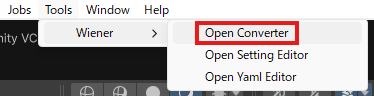
Open Converter
Select Tools > Wiener > Open Converter to open Converter.
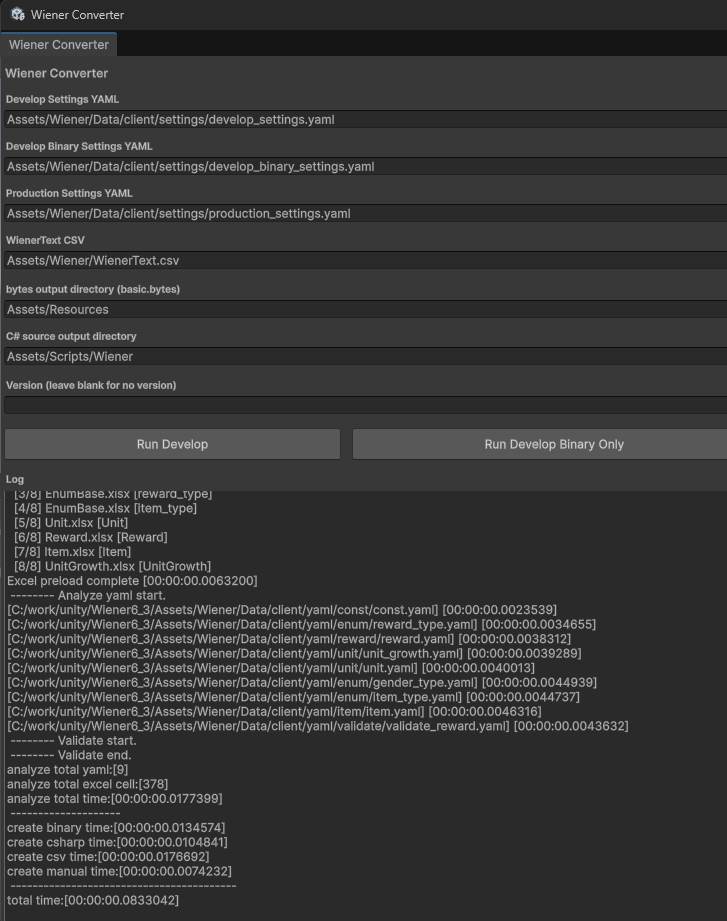
Run Conversion
Press Run Develop to run conversion and confirm that no errors occur.
Runtime Check
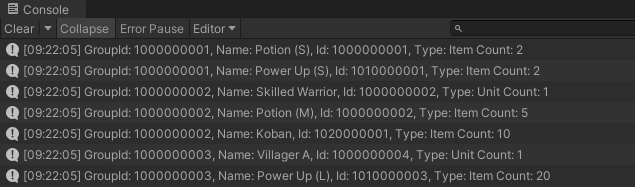
Create the following Reward.cs and Sample.cs scripts, attach them to the scene, and confirm that logs are output correctly.
Reward.cs
using Wiener;

namespace Wiener
{
    interface IRewardData
    {
        string Name { get; }
    }

    public partial class ItemData : IRewardData {}
    public partial class UnitData : IRewardData {}
}

public class Reward
{
    public int Id { get; private set; }
    public RewardType Type { get; private set; }
    public int Count { get; private set; }
    public string Name => _rewardData?.Name ?? "";

    private IRewardData _rewardData;

    public Reward(WienerManager wm, int id, RewardType type, int count = 1)
    {
        Id = id;
        Type = type;
        Count = count;
        _rewardData = type switch
        {
            RewardType.Item => wm.Item.TryGetValue(id, out var item) ? item : null,
            RewardType.Unit => wm.Unit.TryGetValue(id, out var unit) ? unit : null,
            _ => null
        };
    }
}
Sample.cs
using UnityEngine;
using Wiener;

public class Sample : MonoBehaviour
{
    void Start()
    {
        var wm = new WienerManager();
        var textAsset = Resources.Load("basic") as TextAsset;
        var result = wm.LoadBasicPack(textAsset.bytes);
        if (result != Result.Success)
        {
            Debug.LogError($"Failed to load basic pack: {result}");
            return;
        }

        OutputReward(wm);
    }

    void OutputReward(WienerManager wm)
    {
        foreach (var rewards in wm.Reward.Values)
        {
            foreach (var reward in rewards)
            {
                var r = new Reward(wm, reward.RewardId, reward.RewardType, reward.RewardCount);
                Debug.Log($"GroupId: {reward.GroupId}, Name: {r.Name}, Id: {r.Id}, Type: {r.Type} Count: {r.Count}");
            }
        }
    }
}
Result
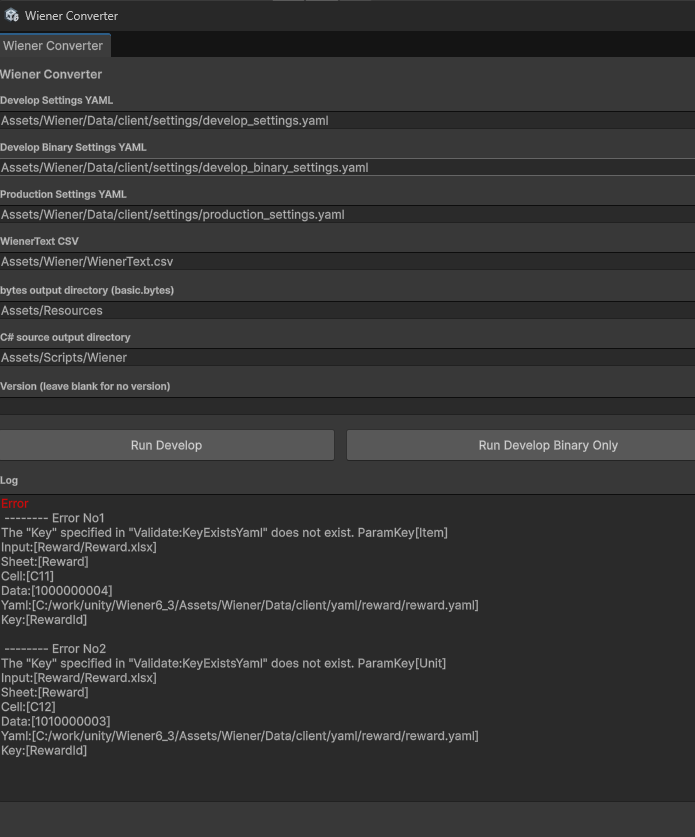
Check an ID Mismatch Error
Excel Setting
Swap RewardType values in Reward.xlsx and specify IDs that do not exist for each type.
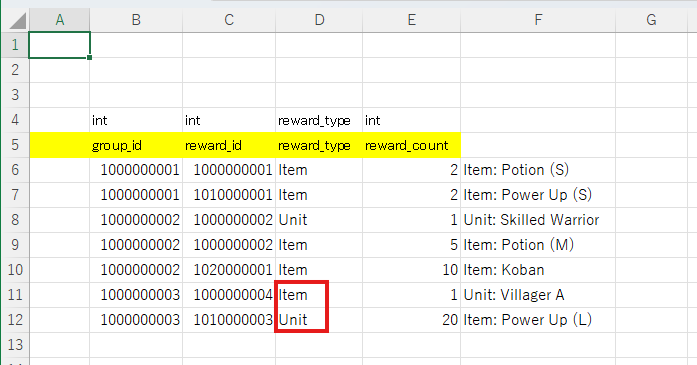
Detect the Error During Conversion
Run conversion and confirm that the target Excel file, sheet, cell, and data are output in the error message.