Create the Unit Master
Preparation Before Starting the Sample
- Unity Startup is complete
- Create the Item Master is complete
Overview
This sample covers the following:
- Check IDs with Validate.KeyExist
- Create DictionaryList-format Static Game Data
Unit Master Format
- id(int) ID
- name(string) Name
- hp(int) HP
- attack(int) Attack
- defense(int) Defense
- magic(int) Magic
- growth_pattern_id(int) Growth pattern ID
Unit Growth Master Format
- growth_pattern_id(int) Growth pattern ID
- level(byte) Level
- hp_ratio(int) HP ratio
- attack_ratio(int) Attack ratio
- defense_ratio(int) Defense ratio
- magic_ratio(int) Magic ratio
Steps:
- Create the Excel data files
- Create YAML
- Convert
- Runtime check
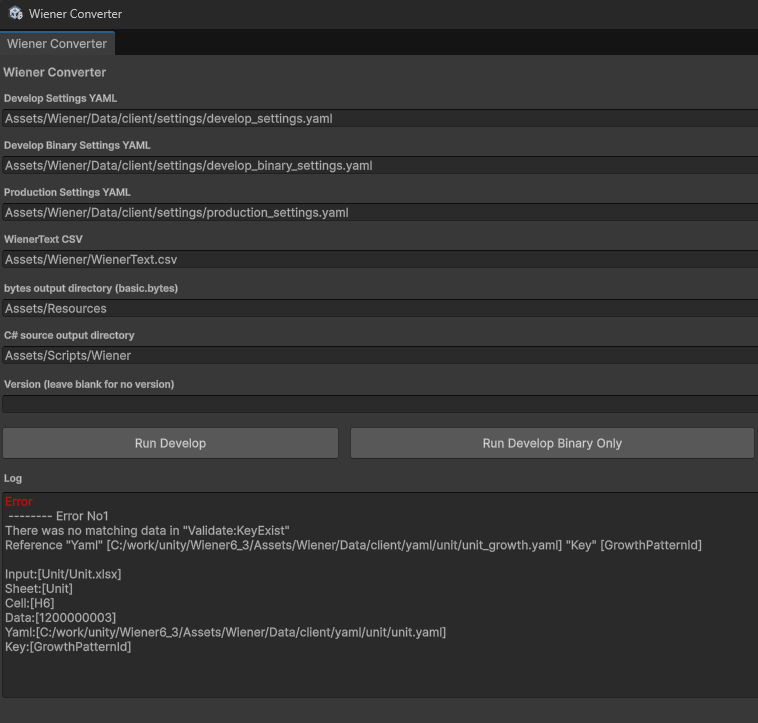
- Check an ID mismatch error
Create the Excel Data Files
Assets/Wiener/Data/excel/Unit/Unit.xlsx
Assets/Wiener/Data/excel/Unit/UnitGrowth.xlsx
Assets
+-- Wiener
    +-- Data
        +-- client
        +-- excel
            +-- Const
            +-- Item
            +-- Unit
            |   +-- Unit.xlsx
            |   +-- UnitGrowth.xlsx
            +-- EnumBase.xlsx
Unit.xlsx
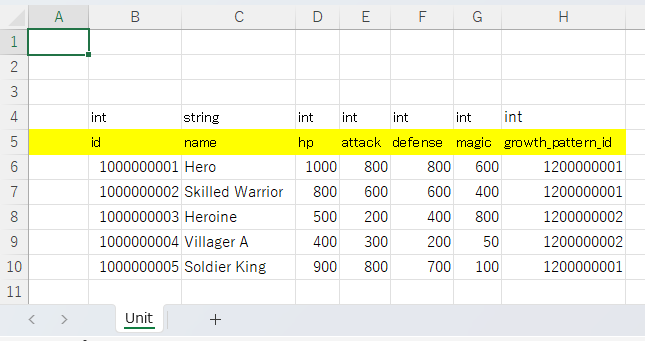
int	string	int	int	int	int	int
id	name	hp	attack	defense	magic	growth_pattern_id
1000000001	Hero	1000	800	800	600	1200000001
1000000002	Skilled Warrior	800	600	600	400	1200000001
1000000003	Heroine	500	200	400	800	1200000002
1000000004	Villager A	400	300	200	50	1200000002
1000000005	Soldier King	900	800	700	100	1200000001
UnitGrowth.xlsx
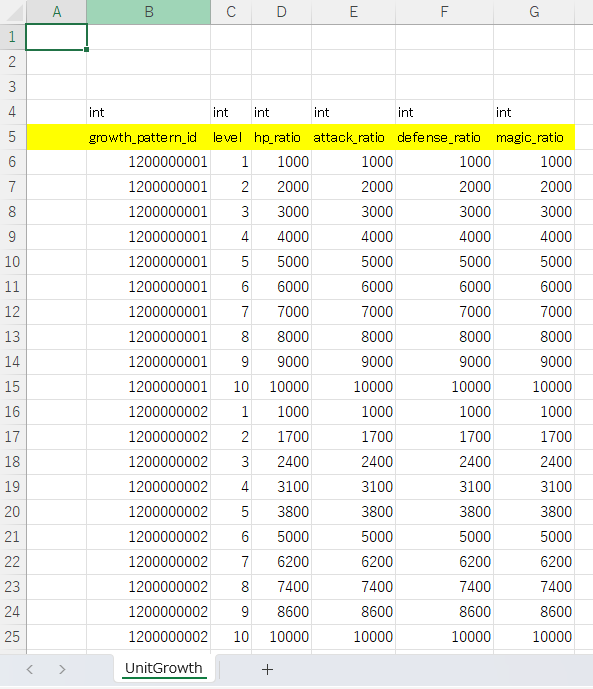
int	int	int	int	int	int
growth_pattern_id	level	hp_ratio	attack_ratio	defense_ratio	magic_ratio
1200000001	1	1000	1000	1000	1000
1200000001	2	2000	2000	2000	2000
1200000001	3	3000	3000	3000	3000
1200000001	4	4000	4000	4000	4000
1200000001	5	5000	5000	5000	5000
1200000001	6	6000	6000	6000	6000
1200000001	7	7000	7000	7000	7000
1200000001	8	8000	8000	8000	8000
1200000001	9	9000	9000	9000	9000
1200000001	10	10000	10000	10000	10000
1200000002	1	1000	1000	1000	1000
1200000002	2	1700	1700	1700	1700
1200000002	3	2400	2400	2400	2400
1200000002	4	3100	3100	3100	3100
1200000002	5	3800	3800	3800	3800
1200000002	6	5000	5000	5000	5000
1200000002	7	6200	6200	6200	6200
1200000002	8	7400	7400	7400	7400
1200000002	9	8600	8600	8600	8600
1200000002	10	10000	10000	10000	10000
Create YAML
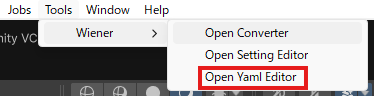
Create YAML files with YamlEditor.
Open YamlEditor
Select Tools > Wiener > Open Yaml Editor to open YamlEditor.
Create the unit Folder
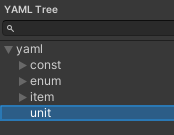
Right-click the yaml folder in the left tree and select Create Folder, then create the unit folder.
Create unit.yaml
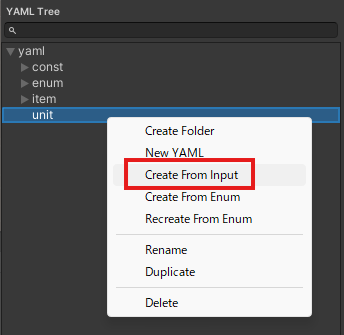
Right-click the unit folder in the left tree and select Create From Input, then load it from Excel or Google Sheets in the same way as the item master.
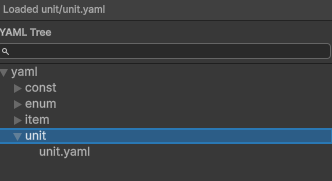
Confirm unit.yaml Was Created
Create unit_growth.yaml
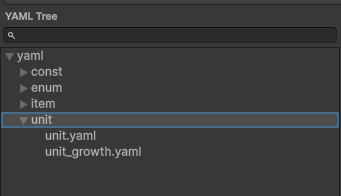
Create unit_growth.yaml from UnitGrowth.xlsx using the same steps as unit.yaml.
Edit YAML
unit.yaml
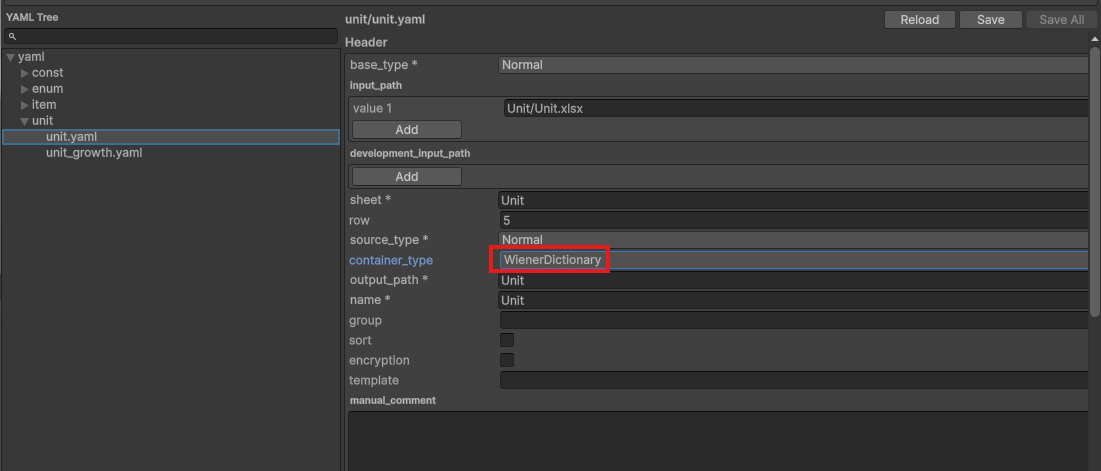
Change header.container_type to WienerDictionary.
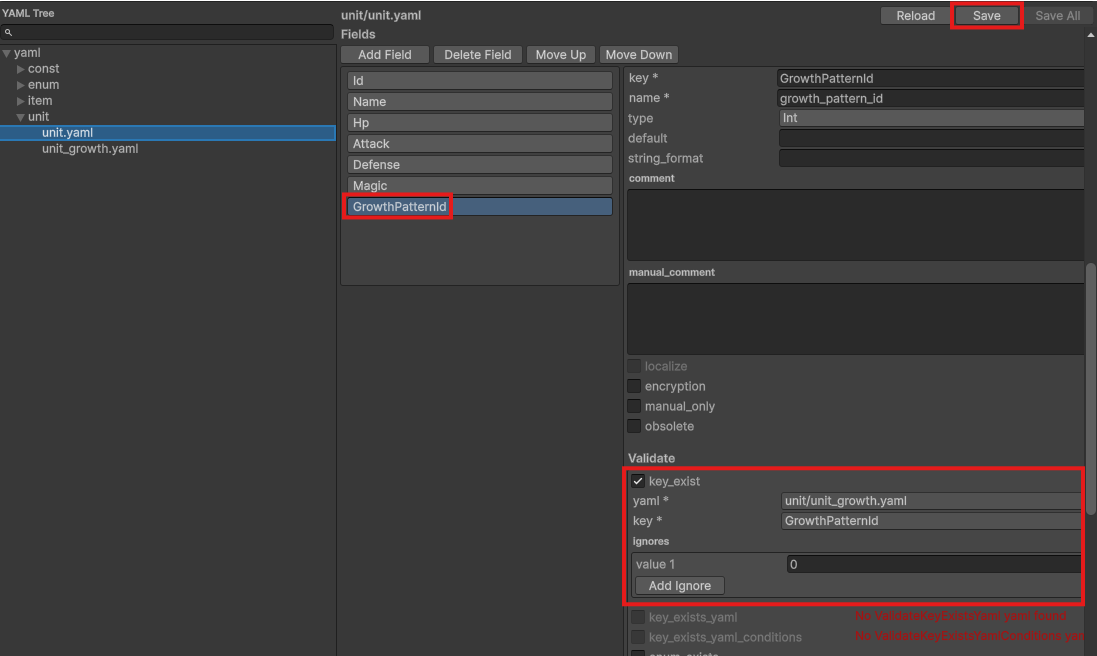
Enable fields.validate.key_exist to check that growth_pattern_id exists in unit_growth.yaml.
Because 0 is treated as an invalid value, add it to ignores and press the Save button.
unit_growth.yaml
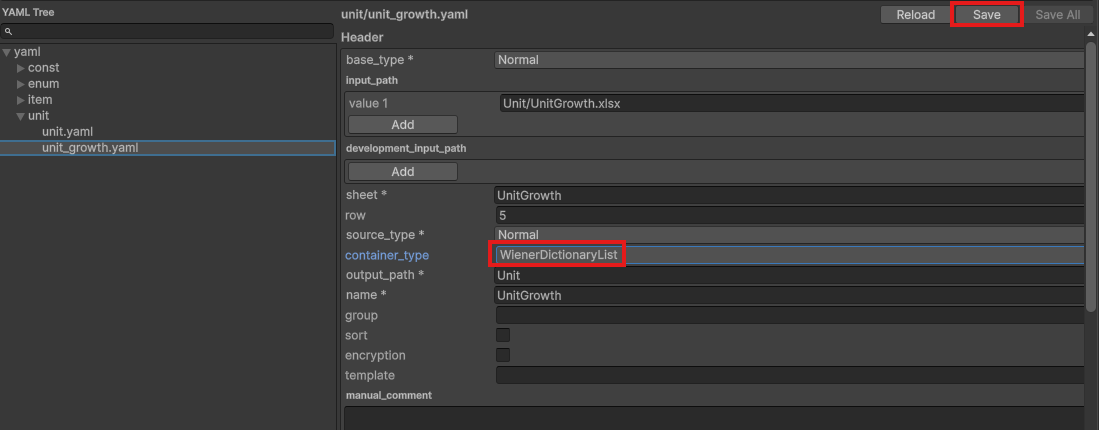
Because growth_pattern_id is a group ID, change container_type to WienerDictionaryList and press the Save button.
Convert
Open Converter
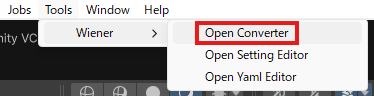
Select Tools > Wiener > Open Converter to open Converter.
Run Conversion
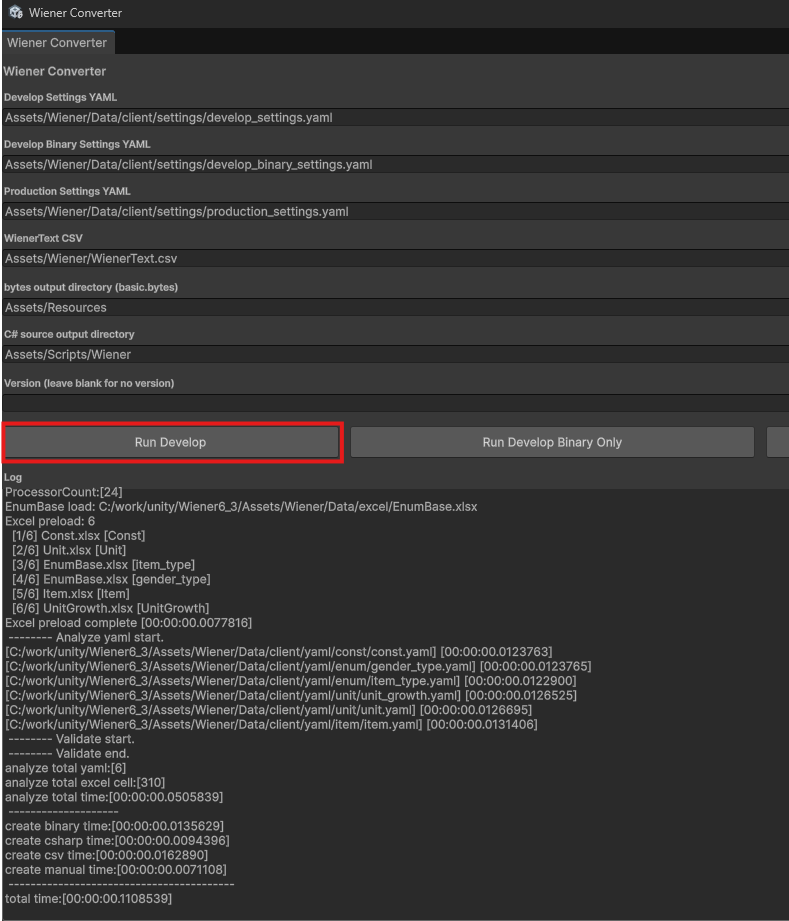
Press Run Develop to run conversion and confirm that no errors occur.
Runtime Check
Create the following Sample.cs script, attach it to the scene, and confirm that logs are output correctly.
Sample.cs
using System.Linq;
using UnityEngine;
using Wiener;

public class Sample : MonoBehaviour
{
    void Start()
    {
        var wm = new WienerManager();
        var textAsset = Resources.Load("basic") as TextAsset;
        var result = wm.LoadBasicPack(textAsset.bytes);
        if (result != Result.Success)
        {
            Debug.LogError($"Failed to load basic pack: {result}");
            return;
        }

        OutputUnit(wm, 4);
    }

    void OutputUnit(WienerManager wm, int level)
    {
        foreach (var unit in wm.Unit.Values)
        {
            if (!wm.UnitGrowth.TryGetValue(unit.GrowthPatternId, out var growths))
                continue;

            var growth = growths.FirstOrDefault(x => x.Level == level);
            if (growth == null)
                continue;

            var attack = unit.Attack * growth.AttackRatio / 10000;
            var defense = unit.Defense * growth.DefenseRatio / 10000;
            Debug.Log($"Id: {unit.Id}, Name: {unit.Name}, Attack: {attack}, Defense: {defense}");
        }
    }
}
Result

Check an ID Mismatch Error
Excel Setting
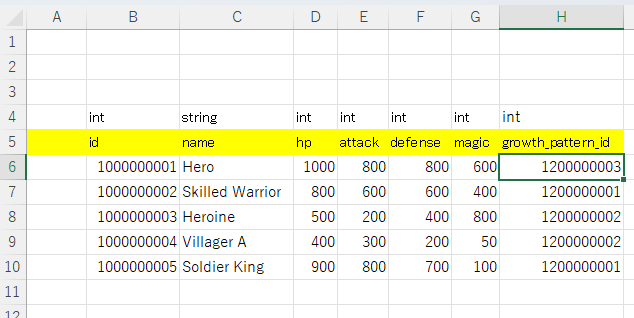
Set growth_pattern_id in Unit.xlsx to an ID that does not exist.
Detect the Error During Conversion
Run conversion and confirm that the target Excel file, sheet, cell, and data are output in the error message.