
Experience Hot Reload
Preparation Before Starting the Sample
- Unity Startup is complete
- Create the Item Master is complete
Overview
This sample keeps Unity in Play Mode, runs conversion again, then reloads basic.bytes with the R key to confirm the changed item master data.
Steps:
- Create C# code for hot reload
- Press Unity's Play button and confirm the log output
- Open Excel and edit the item data
- Run conversion while Unity is still playing
- Press the R key and confirm the changed data
Let Unity Detect Resources Updates
This sample reads Assets/Resources/basic.bytes. Enable Unity's automatic asset refresh so Unity detects the updated basic.bytes while Play Mode is running.
Open Edit > Preferences > Asset Pipeline, then enable Auto Refresh.
Warning
If Auto Refresh is disabled, Resources.Load may read the old asset after Assets/Resources/basic.bytes is updated during Play Mode. In that case, use the StreamingAssets sample later on this page.
Create the C# Code
Change the Sample.cs from the item master sample as follows. It outputs logs once at startup, then reloads basic.bytes and outputs the logs again whenever you press R.
Sample.cs
using UnityEngine;
using Wiener;
using WienerLib;
#if ENABLE_INPUT_SYSTEM
using UnityEngine.InputSystem;
#endif

public class Sample : MonoBehaviour
{
    private WienerManager _wm;

    void Start()
    {
        ReloadAndOutput();
    }

    void Update()
    {
        if (IsReloadKeyPressed())
        {
            ReloadAndOutput();
        }
    }

    bool IsReloadKeyPressed()
    {
#if ENABLE_INPUT_SYSTEM
        return Keyboard.current != null && Keyboard.current.rKey.wasPressedThisFrame;
#else
        return Input.GetKeyDown(KeyCode.R);
#endif
    }

    void ReloadAndOutput()
    {
        var textAsset = Resources.Load<TextAsset>("basic");
        if (textAsset == null)
        {
            Debug.LogError("basic.bytes was not found in Resources.");
            return;
        }

        try
        {
            _wm = new WienerManager();
            var result = _wm.LoadBasicPack(textAsset.bytes);
            if (result != Result.Success)
            {
                Debug.LogError($"Failed to load basic pack: {result}");
                return;
            }

            Debug.Log("---- Reload master data");
            OutputItem();
        }
        finally
        {
            Resources.UnloadAsset(textAsset);
        }
    }

    void OutputItem()
    {
        foreach (var item in _wm.Item.Values)
        {
            Debug.Log($"Id: {item.Id}, Name: {item.Name}, Value: {item.Value}");
        }
    }
}
Check While Unity Is Playing
Press Unity's Play Button
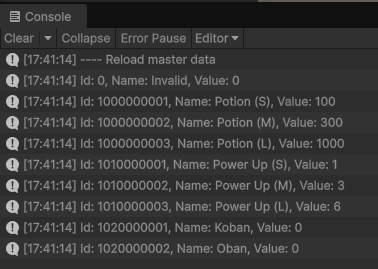
Press Unity's Play button and confirm that the item master logs are output to the Console.
Edit Excel
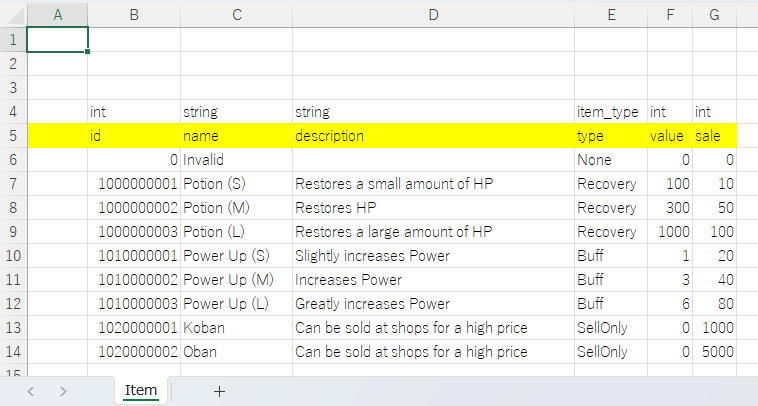
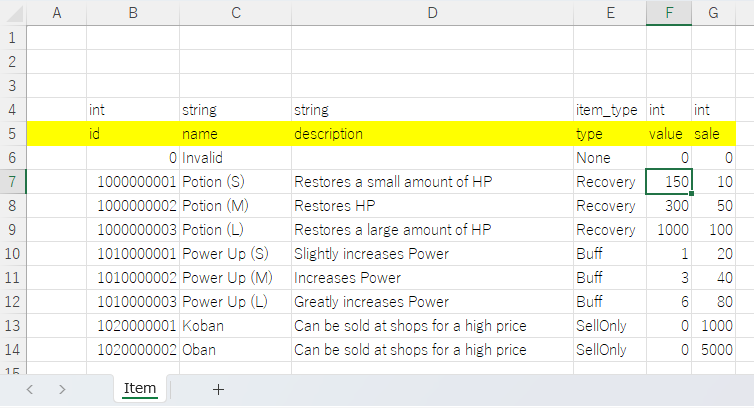
Keep Unity playing, then open Assets/Wiener/Data/excel/Item/Item.xlsx in Excel.
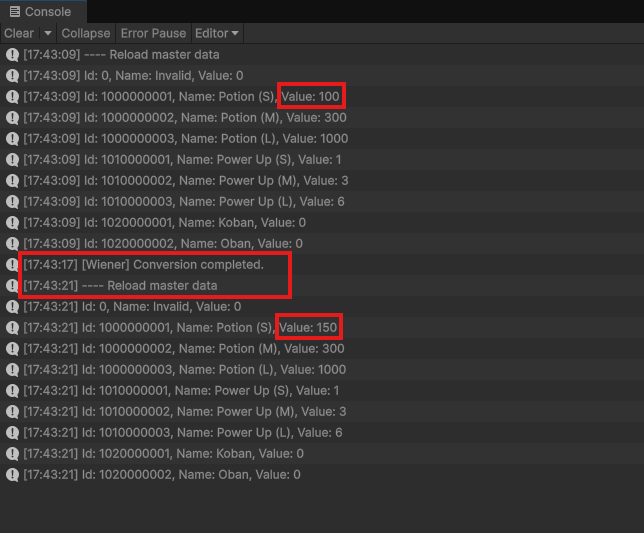
For example, change the value of Potion (S) from 100 to 150, then save the workbook.
↓
Run Conversion During Play Mode
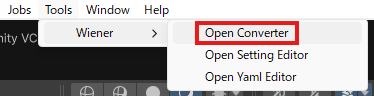
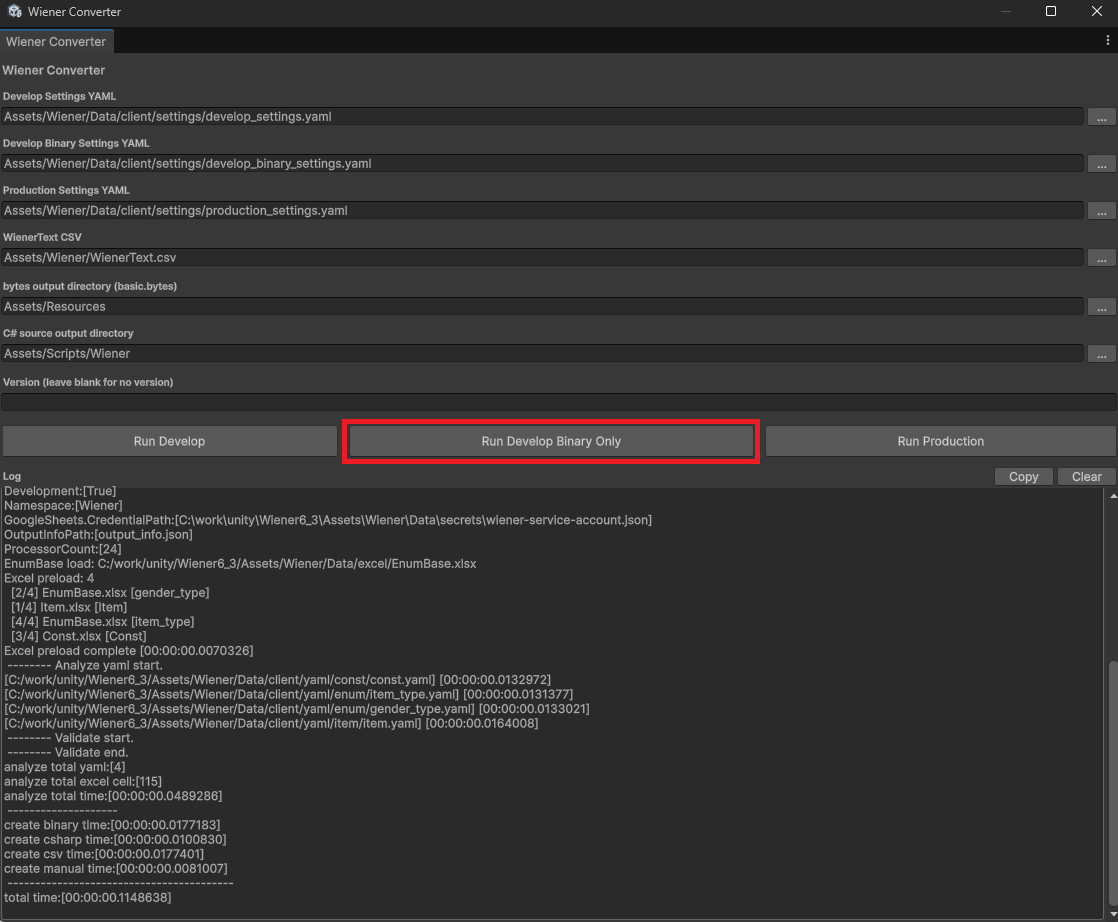
Keep Unity playing, then open Tools > Wiener > Open Converter.
Press Run Develop Binary Only to run conversion and update Assets/Resources/basic.bytes.
Reload with the R Key
Focus the Game view and press the R key.
Confirm that the item master is output again in the Console and that the value changed to the one you saved in Excel.
Sample with StreamingAssets
If you do not want to use automatic Resources updates, you can also read basic.bytes from StreamingAssets.
StreamingAssets can also be used in runtime builds. However, the loading method differs by runtime environment; for example, Android requires access through UnityWebRequest. Resources.Load uses the same call pattern on every environment, so the basic Wiener samples recommend Resources.
This section shows direct file loading code for checking the flow in Unity Editor.
For this method, change the Converter's bytes output directory (basic.bytes) to Assets/StreamingAssets, then run conversion.
Assets
+-- Resources
+-- StreamingAssets
|   +-- basic.bytes
+-- Scenes
+-- Scripts
Sample.cs
using System.IO;
using UnityEngine;
using Wiener;
using WienerLib;
#if ENABLE_INPUT_SYSTEM
using UnityEngine.InputSystem;
#endif

public class Sample : MonoBehaviour
{
    private WienerManager _wm;

    void Start()
    {
        ReloadAndOutput();
    }

    void Update()
    {
        if (IsReloadKeyPressed())
        {
            ReloadAndOutput();
        }
    }

    bool IsReloadKeyPressed()
    {
#if ENABLE_INPUT_SYSTEM
        return Keyboard.current != null && Keyboard.current.rKey.wasPressedThisFrame;
#else
        return Input.GetKeyDown(KeyCode.R);
#endif
    }

    void ReloadAndOutput()
    {
#if UNITY_EDITOR
        var path = Path.Combine(Application.streamingAssetsPath, "basic.bytes");
        if (!File.Exists(path))
        {
            Debug.LogError($"basic.bytes was not found: {path}");
            return;
        }

        var bytes = File.ReadAllBytes(path);
        _wm = new WienerManager();
        var result = _wm.LoadBasicPack(bytes);
        if (result != Result.Success)
        {
            Debug.LogError($"Failed to load basic pack: {result}");
            return;
        }

        Debug.Log("---- Reload master data");
        OutputItem();
#else
        Debug.LogError("This sample reads StreamingAssets directly only in Unity Editor. Use a platform-specific loading method for runtime builds.");
#endif
    }

    void OutputItem()
    {
        foreach (var item in _wm.Item.Values)
        {
            Debug.Log($"Id: {item.Id}, Name: {item.Name}, Value: {item.Value}");
        }
    }
}
Tips
In Unity Editor, files under StreamingAssets can be read directly, so this check does not depend on Unity's Resources asset refresh timing.