
Create the Item Master
Preparation Before Starting the Sample
- Unity Startup is complete
Overview
This sample covers the following:
- Create enum and item data
- Create YAML files from Excel with YamlEditor
- Create Dictionary-format Static Game Data
Item Master Format
- id(int) ID
- name(string) Name
- description(string) Description
- type(enum:item_type) Item type
- value(int) Value
- sale(int) Sale price
Item Type Format
- Recovery
- Buff
- SellOnly
Steps:
- Create the Excel enum file
- Create the Excel data file
- Create YAML
- Convert
- Runtime check
Create the Excel Enum File
Edit EnumBase by referring to Create the Excel enum file.
Assets/Wiener/Data/excel/EnumBase.xlsx
item_type
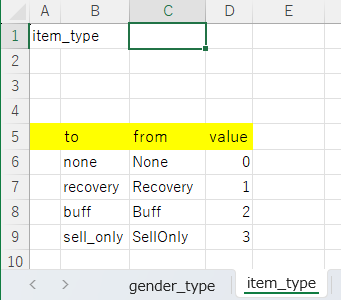
to	from	value
none	None	0
recovery	Recovery	1
buff	Buff	2
sell_only	SellOnly	3
Create the Excel Data File
In the Unity Asset version, place Excel files under Assets/Wiener/Data.
Assets/Wiener/Data/excel/Item/Item.xlsx
Assets
+-- Wiener
    +-- Data
        +-- client
        +-- excel
            +-- Const
            |   +-- Const.xlsx
            +-- Item
            |   +-- Item.xlsx
            +-- EnumBase.xlsx
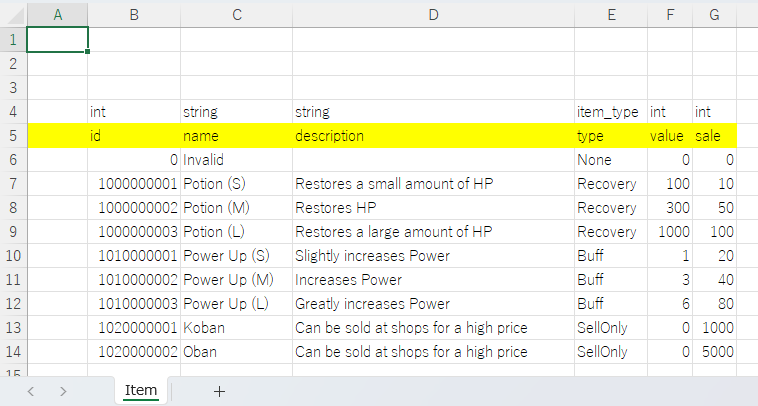
int	string	string	item_type	int	int
id	name	description	type	value	sale
0	Invalid		None	0	0
1000000001	Potion (S)	Restores a small amount of HP	Recovery	100	10
1000000002	Potion (M)	Restores HP	Recovery	300	50
1000000003	Potion (L)	Restores a large amount of HP	Recovery	1000	100
1010000001	Power Up (S)	Slightly increases Power	Buff	1	20
1010000002	Power Up (M)	Increases Power	Buff	3	40
1010000003	Power Up (L)	Greatly increases Power	Buff	6	80
1020000001	Koban	Can be sold at shops for a high price	SellOnly	0	1000
1020000002	Oban	Can be sold at shops for a high price	SellOnly	0	5000
Create YAML
Create YAML files with YamlEditor.
Open YamlEditor
Select Tools > Wiener > Open Yaml Editor to open YamlEditor.
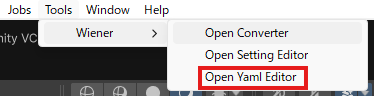
Create item_type.yaml
Right-click the enum folder in the left tree and select Create From Enum.
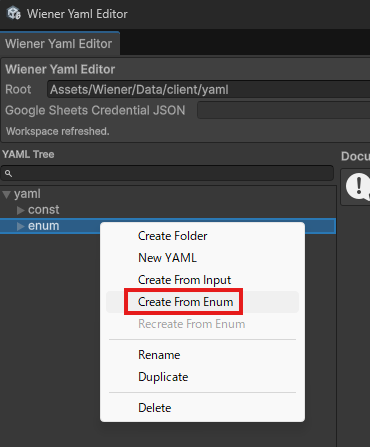
Select the Input File
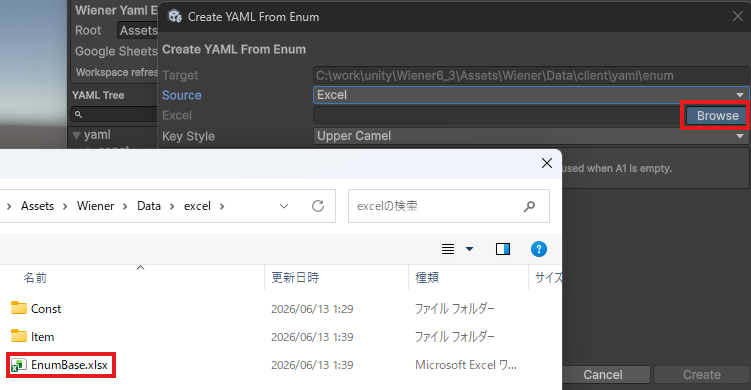
Select Excel for Source.
Press the Browse button in the dialog and select EnumBase.xlsx.
Select Spreadsheet for Source.
Enter the spreadsheet URL for EnumBase, then press the Load button.
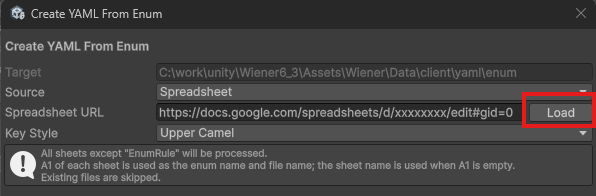
If you use Google Sheets, complete Google Sheets Settings first.
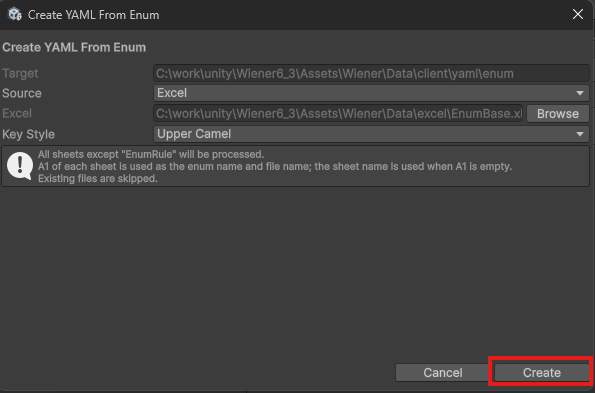
Create the Enum
Press the Create button to create the YAML file.
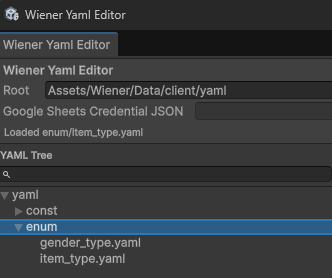
Confirm item_type.yaml Was Created
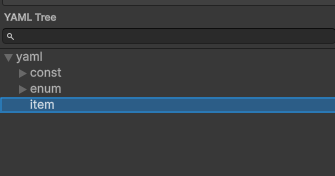
Create the item Folder
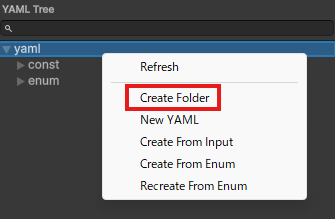
Right-click the yaml folder in the left tree and select Create Folder.
Create item.yaml
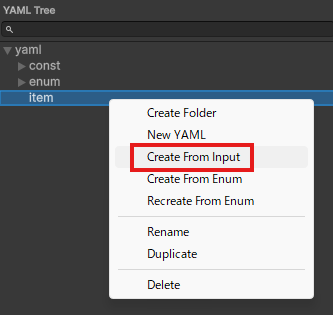
Right-click the item folder in the left tree and select Create From Input.
Select the Input File
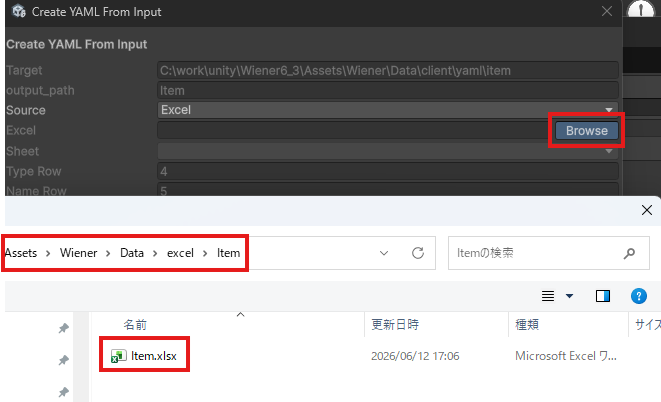
Select Excel for Source.
Press the Browse button in the dialog and select Item.xlsx.
Select Spreadsheet for Source.
Enter the spreadsheet URL for the item master, then press the Load button.
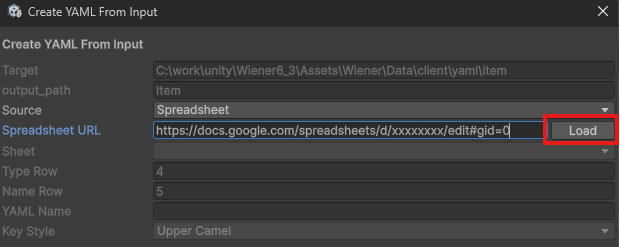
If you use Google Sheets, complete Google Sheets Settings first.
Set the Sheet Fields
Set the required fields and press the Create button.
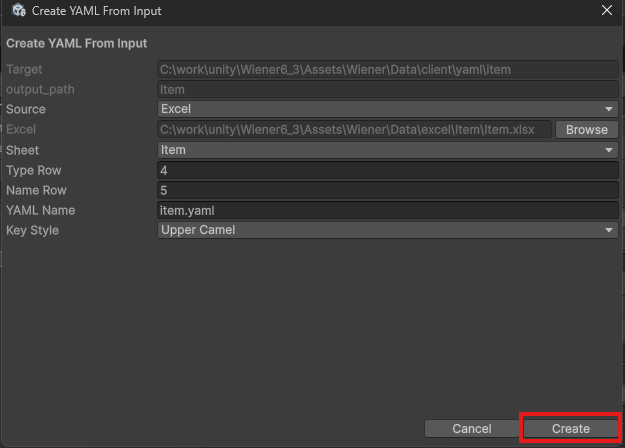
Confirm item.yaml Was Created
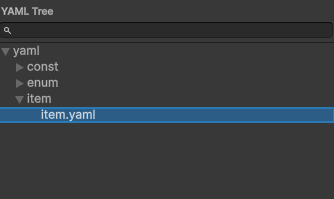
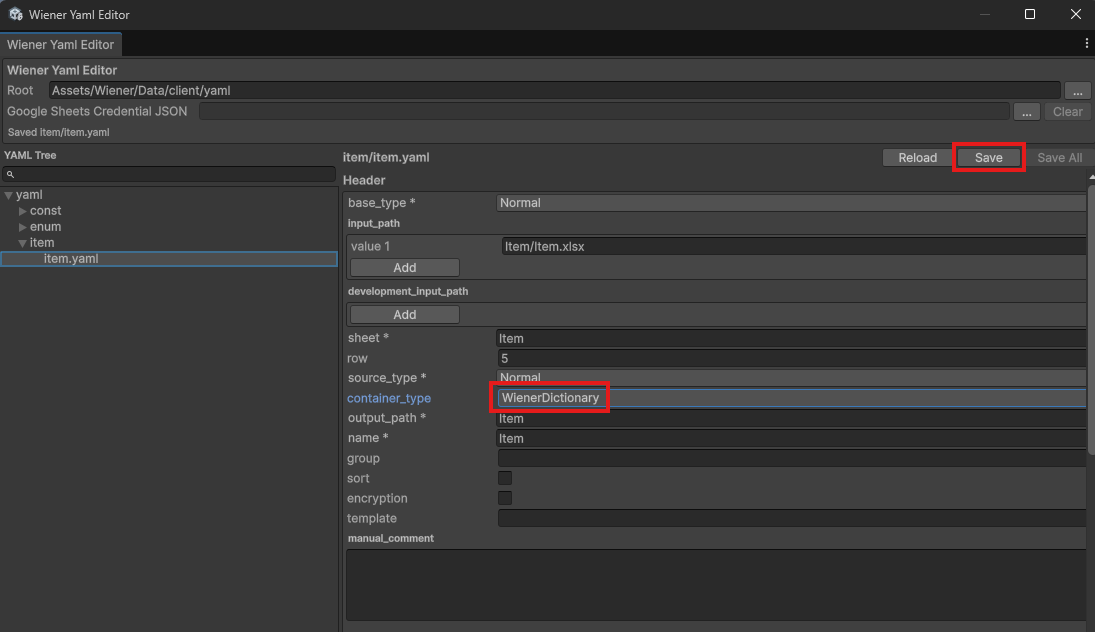
Change to WienerDictionary
Change container_type to WienerDictionary and press the Save button.
Convert
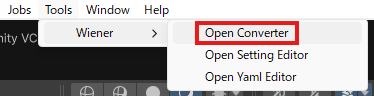
Open Converter
Select Tools > Wiener > Open Converter to open Converter.
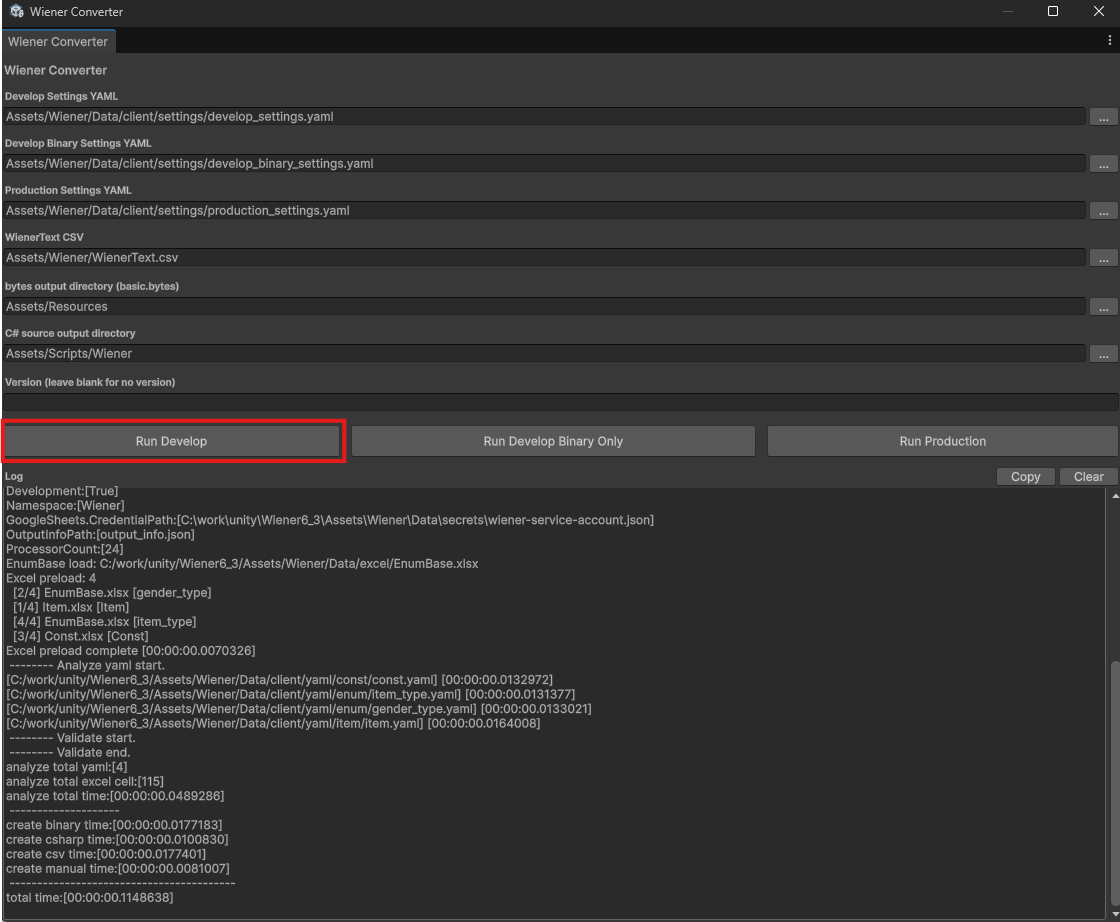
Run Conversion
Press Run Develop to run conversion and confirm that no errors occur.
Output Files
If conversion succeeds, binary data and source files are output to the following paths.
Assets
+-- Resources
|   +-- basic
+-- Scenes
+-- Scripts
    +-- Wiener
Runtime Check
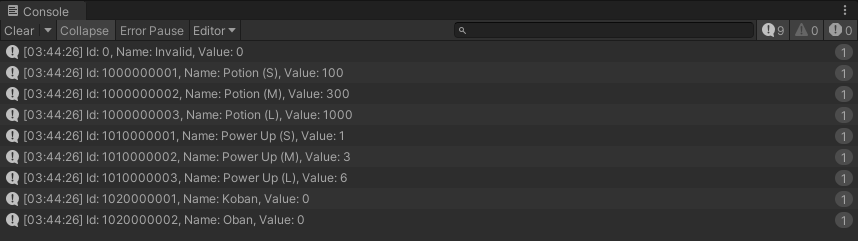
Create the following Sample.cs script, attach it to the scene, and confirm that logs are output correctly.
Sample.cs
using UnityEngine;
using Wiener;

public class Sample : MonoBehaviour
{
    void Start()
    {
        var wm = new WienerManager();
        var textAsset = Resources.Load("basic") as TextAsset;
        var result = wm.LoadBasicPack(textAsset.bytes);
        if (result != Result.Success)
        {
            Debug.LogError($"Failed to load basic pack: {result}");
            return;
        }

        OutputItem(wm);
    }

    void OutputItem(WienerManager wm)
    {
        foreach (var item in wm.Item.Values)
        {
            Debug.Log($"Id: {item.Id}, Name: {item.Name}, Value: {item.Value}");
        }
    }
}
Result
Notes
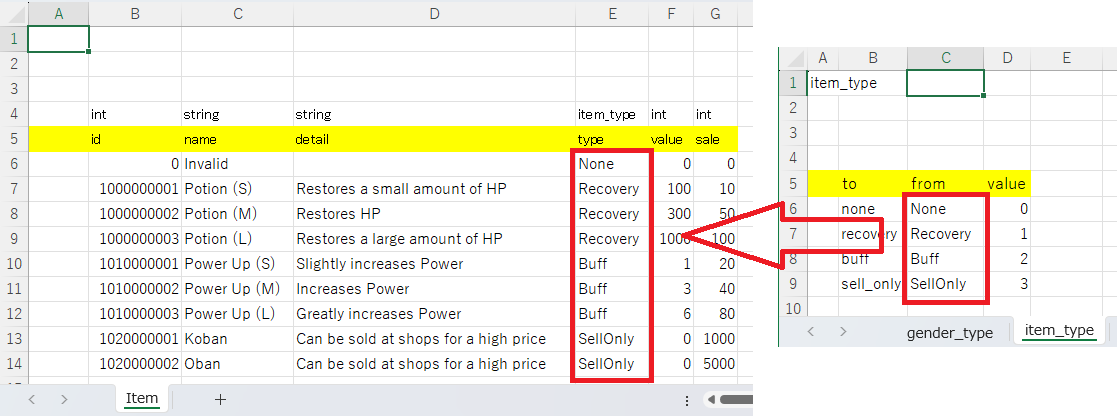
For the value entered in item_type in Item.xlsx, specify a value from the from column on the item_type sheet in EnumBase.xlsx.
When supporting multiple languages, it is recommended to use English values in the from column. Using English as the base makes it easier to keep the data identifiers common even if you add more display languages in the game.
For a single-language game, you can also enter values in your native language. The following is an example written in Japanese.
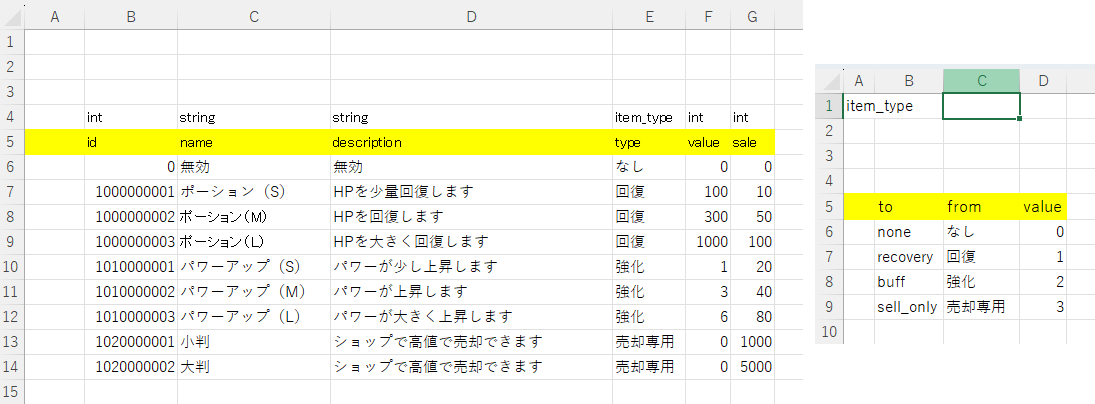
The C# enum code that is output uses the item_type to values converted to UpperCamelCase.
namespace Wiener
{
	public enum ItemType
	{
		None = 0, // なし
		Recovery = 1, // 回復
		Buff = 2, // 強化
		SellOnly = 3, // 売却専用
	}
}