
Convert the 2.2-Million-Cell Sample Data
Prerequisites
- Unity Startup is complete
- The Wiener Unity Asset version is imported into your Unity project
Overview
This sample converts a 2.2-million-cell sample dataset.
The goal is not to create Wiener settings or validations. Instead, use the prepared large dataset to experience how long conversion takes in an actual Unity project.
The flow is as follows:
- Download the 2.2-million-cell sample data
- Back up the existing sample data
- Place the downloaded sample data
- Run conversion from Converter
- Check the conversion time
- Clean up
Download the Sample Data
Download the sample data from the following link.
Download the 2.2-million-cell sample data
Extract the downloaded file to any location.
Back Up the Existing Sample Data
Open the following folder in your Unity project:
Assets/Wiener/Data
Rename the existing client folder and excel folder as follows:
Assets
+-- Wiener
    +-- Data
        +-- _client
        +-- _excel
Restoring the original sample
After testing the 2.2-million-cell sample, delete the added client and excel folders, then rename _client back to client and _excel back to excel.
Place the Sample Data
Copy the client folder and excel folder from the extracted sample data into Assets/Wiener/Data.
The folder structure should look like this:
Assets
+-- Wiener
    +-- Data
        +-- _client
        +-- _excel
        +-- client
        +-- excel
Convert
Open Converter
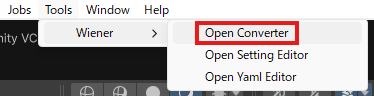
Select Tools > Wiener > Open Converter to open Converter.
Run Conversion
Click Run Develop to run conversion.
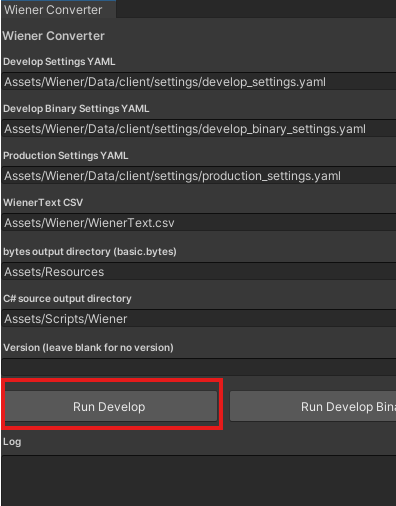
Progress is shown in the log area during conversion. After completion, confirm that Done is shown and no errors are reported.
Check the Conversion Time
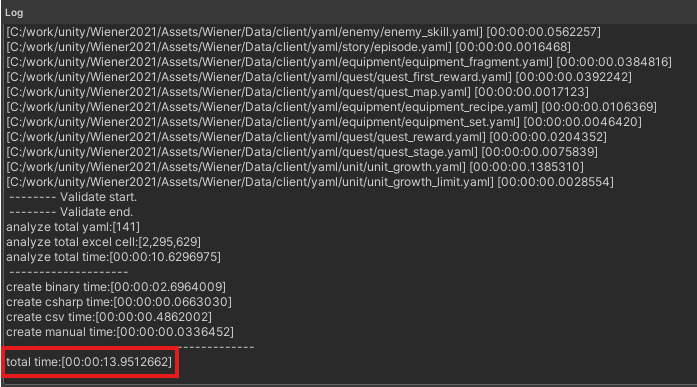
Check how long it takes to read the 2.2-million-cell Excel data and output the binary data and C# source code according to the YAML settings.
The execution time depends on your PC specs, Unity Editor state, and storage speed. On the first run, include Unity's asset refresh time when checking the result.
For reference, conversion took just under 14 seconds in the following test environment.
Test Environment
CPU: 13th Gen Intel(R) Core(TM) i7-13700F
Memory: 64GB / Corsair CMK64GX4M2E3200C16 / DDR4-3200
SSD: Solidigm SSDPFKNU010TZ / NVMe / rated read 4125 MB/s, write 2950 MB/s
Output Files
On success, the binary and source files are output to the following paths:
Assets
+-- Resources
|   +-- basic
+-- Scripts
    +-- Wiener
Clean Up
After checking the 2.2-million-cell sample, delete the output files and the placed sample data, then restore the original sample data.
Delete the Output Files
Delete the following files and folders generated by conversion:
Assets
+-- Resources
|   +-- basic
+-- Scripts
    +-- Wiener
Delete the 2.2-Million-Cell Sample Data
Delete the client folder and excel folder that you placed under Assets/Wiener/Data.
Assets
+-- Wiener
    +-- Data
        +-- _client
        +-- _excel
        +-- client   <-- delete
        +-- excel    <-- delete
Restore the Original Sample Data
Rename the backed-up _client folder and _excel folder back to their original names.
Assets
+-- Wiener
    +-- Data
        +-- client
        +-- excel
Return to Unity Editor and wait for asset refresh to complete if needed.