
ホットリロードを体験する
サンプル開始前の準備
- Unityスタートアップが完了している
- アイテムマスターを作成するが完了している
概要
このサンプルでは、Unityを再生したままアイテムマスターをコンバートし直し、Rキーでbasic.bytesを再読み込みして変更を確認します。
手順は次の通りです。
- ホットリロード用のC#コードを作成
- Unityの再生ボタンを押してログを確認
- Excelを開いてアイテムデータを書き換える
- Unity実行中にコンバート
- Rキーを押して書き換えを確認
Resources更新をUnityに認識させる
このサンプルではAssets/Resources/basic.bytesを読み込みます。Unity実行中にコンバートしたbasic.bytesをUnity側でも更新済みとして扱うため、Unityの自動更新を有効にしておきます。
Edit > Preferences > Asset Pipelineを開き、Auto Refreshを有効にしてください。
注意
Auto Refreshが無効の場合、Unity実行中にAssets/Resources/basic.bytesが更新されても、Resources.Loadで古いアセットが読み込まれることがあります。 その場合は、後述のStreamingAssetsを使うEditor限定サンプルを使用してください。
C#コードを作成
アイテムマスターサンプルのSample.csを次のように変更します。起動時に一度ログを出力し、Rキーを押すたびにbasic.bytesを読み直して再出力します。
Sample.cs
using UnityEngine;
using Wiener;
using WienerLib;
#if ENABLE_INPUT_SYSTEM
using UnityEngine.InputSystem;
#endif

public class Sample : MonoBehaviour
{
    private WienerManager _wm;

    void Start()
    {
        ReloadAndOutput();
    }

    void Update()
    {
        if (IsReloadKeyPressed())
        {
            ReloadAndOutput();
        }
    }

    bool IsReloadKeyPressed()
    {
#if ENABLE_INPUT_SYSTEM
        return Keyboard.current != null && Keyboard.current.rKey.wasPressedThisFrame;
#else
        return Input.GetKeyDown(KeyCode.R);
#endif
    }

    void ReloadAndOutput()
    {
        var textAsset = Resources.Load<TextAsset>("basic");
        if (textAsset == null)
        {
            Debug.LogError("basic.bytes was not found in Resources.");
            return;
        }

        try
        {
            _wm = new WienerManager();
            var result = _wm.LoadBasicPack(textAsset.bytes);
            if (result != Result.Success)
            {
                Debug.LogError($"Failed to load basic pack: {result}");
                return;
            }

            Debug.Log("---- Reload master data");
            OutputItem();
        }
        finally
        {
            Resources.UnloadAsset(textAsset);
        }
    }

    void OutputItem()
    {
        foreach (var item in _wm.Item.Values)
        {
            Debug.Log($"Id: {item.Id}, Name: {item.Name}, Value: {item.Value}");
        }
    }
}
Unity再生中に確認
Unityの再生ボタンを押す
Unityの再生ボタンを押して、Consoleにアイテムマスターのログが出力されることを確認します。
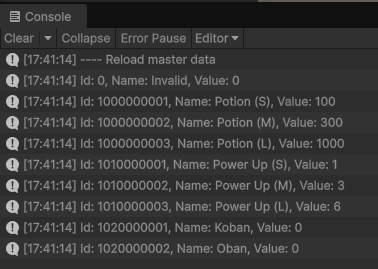
Excelを書き換える
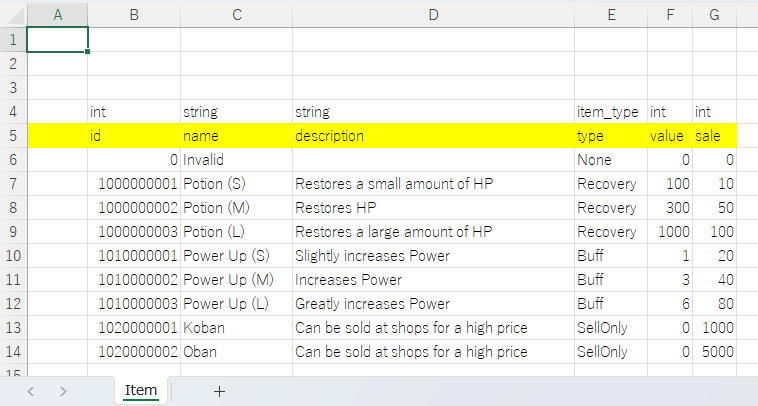
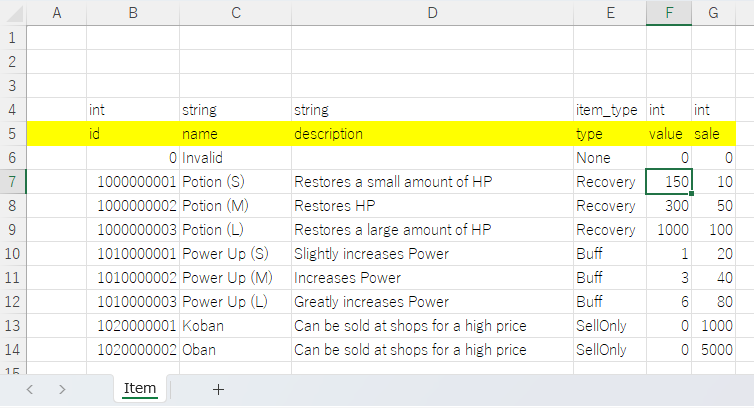
Unityを再生したまま、Assets/Wiener/Data/excel/Item/Item.xlsxをExcelで開きます。
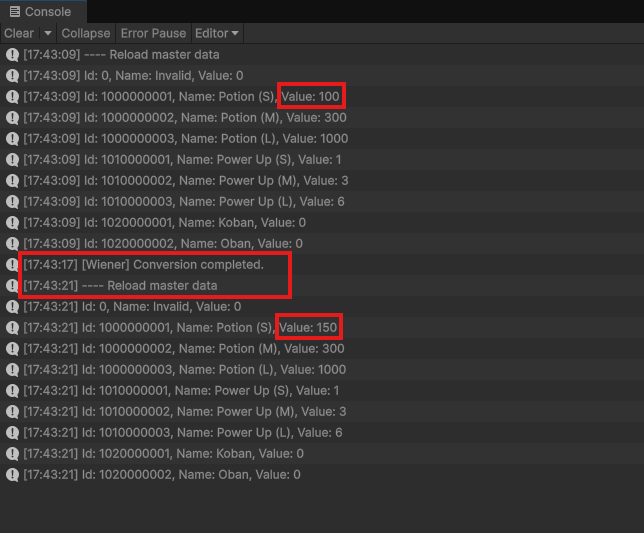
例として、Potion (S)のvalueを100から150に変更して保存します。
↓
Unity実行中にコンバート
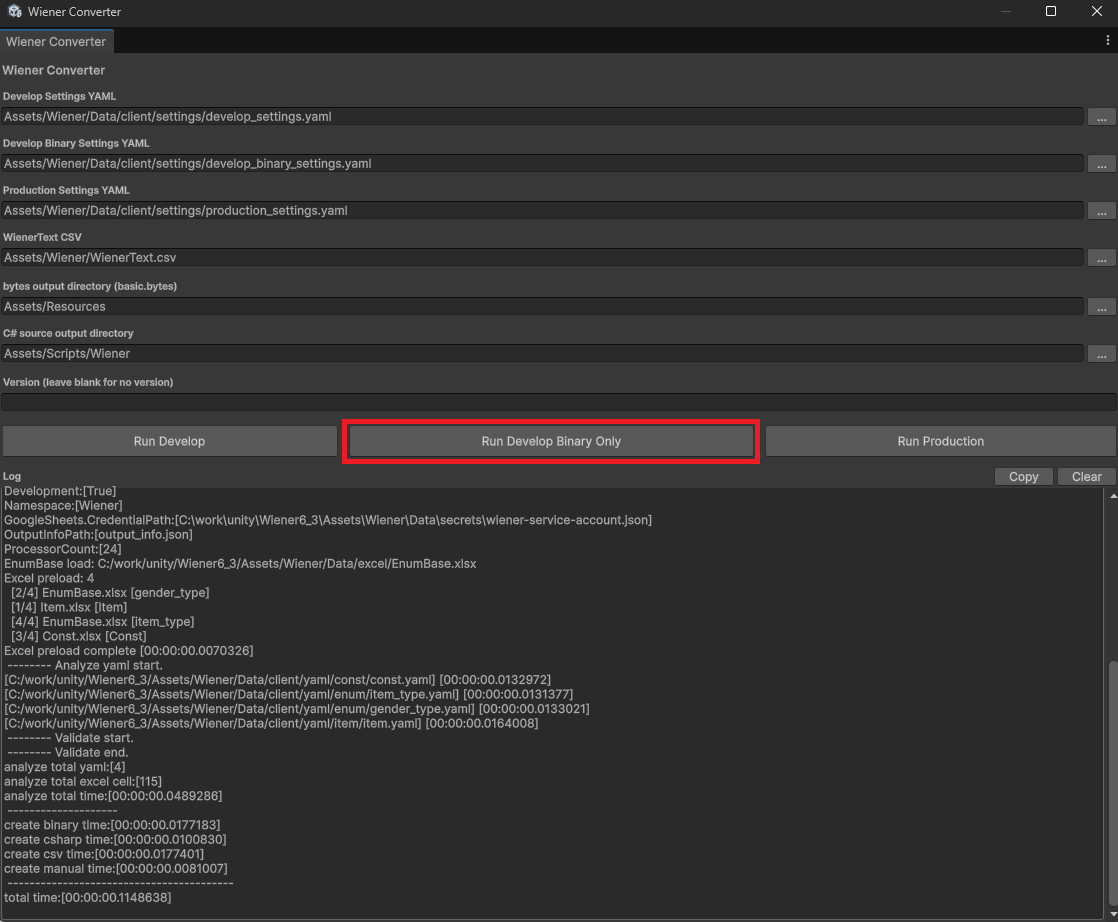
Unityを再生したまま、Tools > Wiener > Open Converterを開きます。
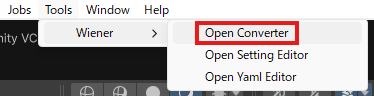
Run Develop Binary Onlyを押下してコンバートを実行し、Assets/Resources/basic.bytesを更新します。
Rキーでリロード
Gameビューにフォーカスを合わせてRキーを押します。
Consoleに再度アイテムマスターが出力され、Excelで変更した値に変わっていることを確認してください。
StreamingAssetsを使うサンプル
Resourcesの自動更新を使いたくない場合は、StreamingAssetsからbasic.bytesを読み込む方法もあります。
StreamingAssetsは本番環境でも使用できます。ただし、AndroidではUnityWebRequestでアクセスする必要があるなど、実行環境によって読み込み方法が異なります。Resources.Loadはどの環境でも同じ呼び出し方で読み込めるため、Wienerの基本サンプルではResourcesを推奨しています。
ここでは、Unity Editorで確認するための直接読み込みコードを紹介します。
この方法ではConverterのbytes output directory (basic.bytes)をAssets/StreamingAssetsに変更してからコンバートします。
Assets
+-- Resources
+-- StreamingAssets
|   +-- basic.bytes
+-- Scenes
+-- Scripts
Sample.cs
using System.IO;
using UnityEngine;
using Wiener;
using WienerLib;
#if ENABLE_INPUT_SYSTEM
using UnityEngine.InputSystem;
#endif

public class Sample : MonoBehaviour
{
    private WienerManager _wm;

    void Start()
    {
        ReloadAndOutput();
    }

    void Update()
    {
        if (IsReloadKeyPressed())
        {
            ReloadAndOutput();
        }
    }

    bool IsReloadKeyPressed()
    {
#if ENABLE_INPUT_SYSTEM
        return Keyboard.current != null && Keyboard.current.rKey.wasPressedThisFrame;
#else
        return Input.GetKeyDown(KeyCode.R);
#endif
    }

    void ReloadAndOutput()
    {
#if UNITY_EDITOR
        var path = Path.Combine(Application.streamingAssetsPath, "basic.bytes");
        if (!File.Exists(path))
        {
            Debug.LogError($"basic.bytes was not found: {path}");
            return;
        }

        var bytes = File.ReadAllBytes(path);
        _wm = new WienerManager();
        var result = _wm.LoadBasicPack(bytes);
        if (result != Result.Success)
        {
            Debug.LogError($"Failed to load basic pack: {result}");
            return;
        }

        Debug.Log("---- Reload master data");
        OutputItem();
#else
        Debug.LogError("This sample reads StreamingAssets directly only in Unity Editor. Use a platform-specific loading method for runtime builds.");
#endif
    }

    void OutputItem()
    {
        foreach (var item in _wm.Item.Values)
        {
            Debug.Log($"Id: {item.Id}, Name: {item.Name}, Value: {item.Value}");
        }
    }
}
ヒント
Unity EditorではStreamingAssets内のファイルを直接読み込めるため、UnityのResourcesアセット更新タイミングに依存せずに確認できます。